> ## Documentation Index
> Fetch the complete documentation index at: https://docs.retellai.com/llms.txt
> Use this file to discover all available pages before exploring further.
# Retell AI billing: credits, auto recharge, and invoices
> How Retell AI billing works: prepaid credits and auto recharge, plus the 09/30/2026 switch from legacy monthly invoices to a credit balance.
The Billing tab in your dashboard is where you manage payments, buy credits, track usage, and download invoices. Retell has two billing versions, and this page covers both.
Workspaces still on monthly billing can switch by clicking **Switch now** and adding credits. If you don't, Retell moves the workspace on **September 30, 2026**, and the credit balance starts at **\$0**. Enterprise workspaces stay on monthly invoicing. How to switch is in the [legacy billing notice](/deprecation-notice/2026/09-30_legacy_billing).
## Which billing version am I on?
Check the Billing tab to see which version applies to your workspace:
* **Credit-based billing** — your Billing page shows a **Credits Balance** with **Buy credits** and **Auto recharge** buttons. You pay for usage upfront with prepaid credits. This applies to newer accounts.
* **Monthly billing (legacy)** — your Billing page shows only monthly invoices, with no credit balance. Usage is billed at the end of each period. This applies to workspaces created before credit-based billing. On September 30, 2026, Retell moves these workspaces to credit-based billing. If you don't click **Switch now** and add credits first, the credit balance starts at **\$0**. Enterprise workspaces stay on monthly invoicing.
Billing is scoped **per workspace**, not per account. Every workspace, including new ones you create later, has its own payment method, credit balance, invoices, and usage totals. Adding a card in one workspace does not carry it over to another workspace under the same login: switch into each new workspace and add a payment method there before running calls. See [Create and manage Retell workspaces](/accounts/workspace) for how to switch workspaces.
Choose your billing version below.
## How credit-based billing works
 Credit-based accounts pay for usage with a prepaid credit balance:
* **Usage costs** — calls, chat, and other metered usage — are deducted from your credit balance in real time.
* **Subscription items** — phone numbers, knowledge bases beyond the free tier, calls per second (CPS), and purchased [concurrency](/deploy/concurrency) — are not paid with credits. They are billed to your payment method on file at the end of each billing cycle.
The billing cycle runs from the 1st of the month to the end of the month. Subscription items purchased mid-month are prorated for the portion of the month they were active.
New accounts start with **\$10 in free trial credits** so you can test Retell before adding a payment method. The trial credit is granted once per email address. If you previously had a Retell account with the same email (including a deleted one), signing up again won't grant the credit a second time.
When your credit balance reaches zero, calls, chat, and other usage stop until you buy credits or auto recharge tops up your balance. Calls that end this way show the `credit_exhausted` [disconnection reason](/reliability/debug-call-disconnect). Set up auto recharge to avoid interruptions.
## Buy credits
Go to the **Billing** tab in your dashboard and click **Buy credits**.
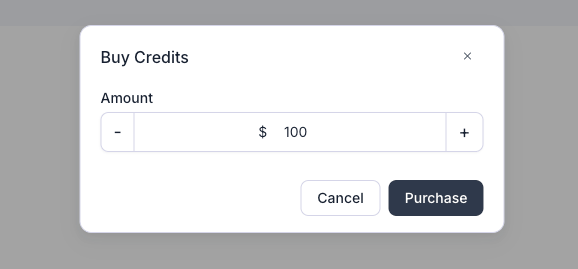
Enter the amount and click **Purchase**. The charge goes to your payment method on file, processed securely through Stripe (see [Add payment methods](/accounts/add-payment)).
Credit-based accounts pay for usage with a prepaid credit balance:
* **Usage costs** — calls, chat, and other metered usage — are deducted from your credit balance in real time.
* **Subscription items** — phone numbers, knowledge bases beyond the free tier, calls per second (CPS), and purchased [concurrency](/deploy/concurrency) — are not paid with credits. They are billed to your payment method on file at the end of each billing cycle.
The billing cycle runs from the 1st of the month to the end of the month. Subscription items purchased mid-month are prorated for the portion of the month they were active.
New accounts start with **\$10 in free trial credits** so you can test Retell before adding a payment method. The trial credit is granted once per email address. If you previously had a Retell account with the same email (including a deleted one), signing up again won't grant the credit a second time.
When your credit balance reaches zero, calls, chat, and other usage stop until you buy credits or auto recharge tops up your balance. Calls that end this way show the `credit_exhausted` [disconnection reason](/reliability/debug-call-disconnect). Set up auto recharge to avoid interruptions.
## Buy credits
Go to the **Billing** tab in your dashboard and click **Buy credits**.
Enter the amount and click **Purchase**. The charge goes to your payment method on file, processed securely through Stripe (see [Add payment methods](/accounts/add-payment)).
 Credits never expire, but they are non-refundable once purchased.
## Set up auto recharge
Auto recharge buys credits automatically when your balance runs low, so calls are never blocked:
Go to the **Billing** tab, click **Auto recharge**, and toggle **Auto Recharge** on.
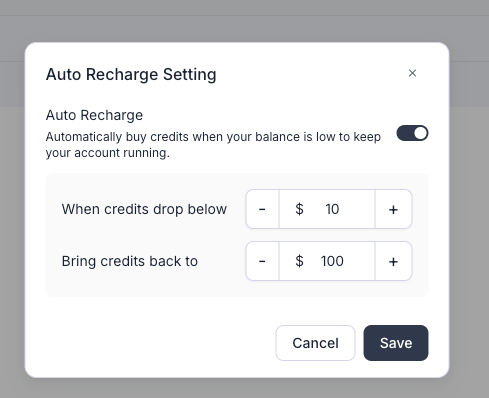
Set **When credits drop below** (the balance that triggers a recharge) and **Bring credits back to** (the balance restored on each recharge), then click **Save**. As of September 2026, the trigger can be **\$10** to **\$1,000** and the restored balance **\$20** to **\$2,000**. The restored balance has to be higher than the trigger. Raise both if your usage can spend the balance down quickly.
Credits never expire, but they are non-refundable once purchased.
## Set up auto recharge
Auto recharge buys credits automatically when your balance runs low, so calls are never blocked:
Go to the **Billing** tab, click **Auto recharge**, and toggle **Auto Recharge** on.
Set **When credits drop below** (the balance that triggers a recharge) and **Bring credits back to** (the balance restored on each recharge), then click **Save**. As of September 2026, the trigger can be **\$10** to **\$1,000** and the restored balance **\$20** to **\$2,000**. The restored balance has to be higher than the trigger. Raise both if your usage can spend the balance down quickly.
 Each recharge is charged to your payment method on file. If a recharge payment fails, follow [Handle failed payments](/accounts/fail-payment).
## Set a monthly budget
If you see **Budget Setting** next to **Auto recharge**, you can cap how much the workspace spends in a month. Workspaces without that button have no monthly cap.
On the Billing page, click **Budget Setting** and turn **Budget** on. Leave it off for no cap and no spending emails.
Under **Set Monthly Budget**, choose an amount from **\$10** to **\$100,000**, in steps of **\$10** (as of September 2026), then click **Save**.
Retell always emails you at 80% and 100% of the budget. Add up to 5 more alerts. Each one is a whole percent from 1 to 100, and it can't be 80 or 100. Under **Alert recipients**, add the email addresses that should get every alert. Leave that empty to email people on the workspace who can manage billing.
At 100%, calls and API requests pause. Credits still on the balance do not keep usage running. Calls that end this way show the `budget_reached` [disconnection reason](/reliability/debug-call-disconnect). Raise the budget or turn it off to resume, or wait until the next calendar month starts (UTC). Auto recharge only buys credits when the balance is low. It does not raise this cap.
## Subscription items and invoices
At the end of each calendar month, you receive an invoice for subscription items:
* Phone numbers [purchased through Retell](/deploy/purchase-number)
* Knowledge bases beyond the free tier
* Calls per second (CPS) upgrades
* Purchased [concurrency](/deploy/concurrency)
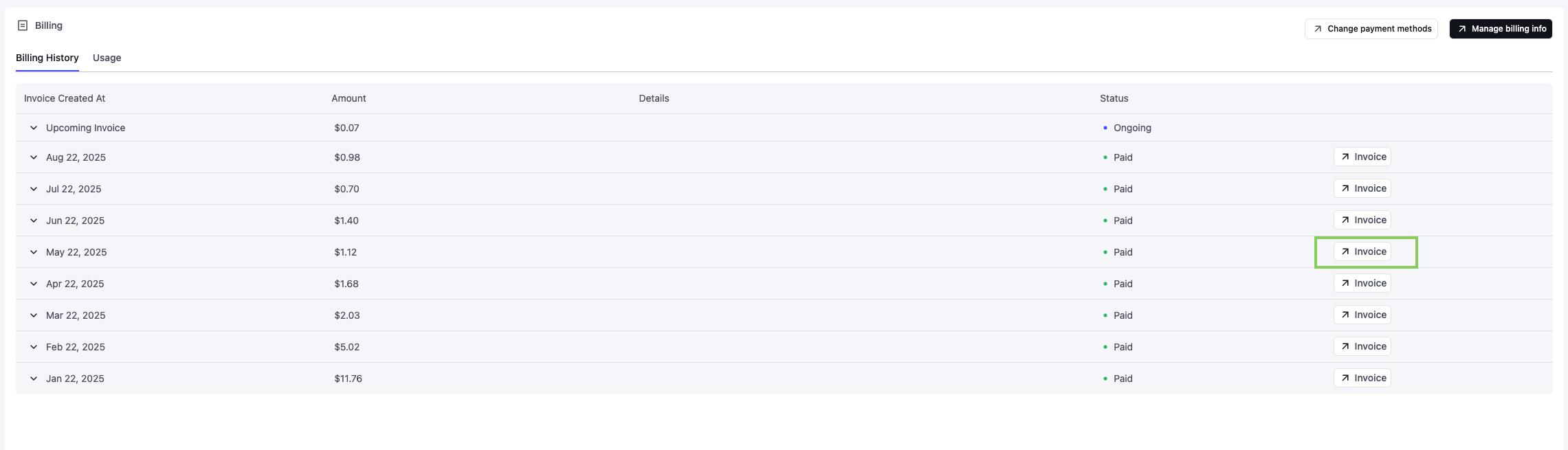
These are charged to your payment method on file and prorated if purchased mid-cycle. Download invoices from the Billing page by clicking the "Invoice" button next to the respective period.
## Stop charges or close your account
To stop accruing charges on a credit-based account:
1. **Turn off auto recharge** so your balance is not topped up automatically.
2. **Release any phone numbers you own.** Numbers are billed monthly until released. Remove the number from the Phone Numbers page, or call the [Delete Phone Number API](/api-references/delete-phone-number).
3. **Delete knowledge bases beyond the free tier** and remove any CPS or concurrency upgrades. These are billed monthly until removed.
4. **Settle any outstanding invoices** on the Billing page.
Remaining credits are non-refundable, so spend down your balance before closing your account. To close your account entirely, follow [Delete your account](/accounts/account#delete-your-account) after completing the steps above.
Monthly billing ends on September 30, 2026. Click **Switch now** and add credits before then. If you don't, the credit balance starts at **\$0**. Enterprise workspaces stay on monthly invoicing. See the [legacy billing notice](/deprecation-notice/2026/09-30_legacy_billing).
## Billing overview
The Billing tab allows you to manage payments, track expenses, and download invoices:
1. Payment management: We use Stripe for secure and reliable payment processing. Update your payment methods by clicking the "Change payment methods" button.
2. Billing history: Review your monthly expenses, including cost breakdowns by category (e.g., Voice Infra, LLM).
3. Invoices: Download invoices by clicking the "Invoice" button next to the respective period.
4. Current charges: View ongoing costs for the current billing period, including itemized amounts and usage details.
Legacy accounts use **post-usage billing**, not a prepaid credit balance. You are charged at the end of each billing period based on actual usage on the payment method you have on file. There is no manual top-up or auto recharge to configure. Make sure a valid payment method is added (see [Add payment methods](/accounts/add-payment)) to avoid service interruptions. If a charge fails, follow [Handle failed payments](/accounts/fail-payment).
Each recharge is charged to your payment method on file. If a recharge payment fails, follow [Handle failed payments](/accounts/fail-payment).
## Set a monthly budget
If you see **Budget Setting** next to **Auto recharge**, you can cap how much the workspace spends in a month. Workspaces without that button have no monthly cap.
On the Billing page, click **Budget Setting** and turn **Budget** on. Leave it off for no cap and no spending emails.
Under **Set Monthly Budget**, choose an amount from **\$10** to **\$100,000**, in steps of **\$10** (as of September 2026), then click **Save**.
Retell always emails you at 80% and 100% of the budget. Add up to 5 more alerts. Each one is a whole percent from 1 to 100, and it can't be 80 or 100. Under **Alert recipients**, add the email addresses that should get every alert. Leave that empty to email people on the workspace who can manage billing.
At 100%, calls and API requests pause. Credits still on the balance do not keep usage running. Calls that end this way show the `budget_reached` [disconnection reason](/reliability/debug-call-disconnect). Raise the budget or turn it off to resume, or wait until the next calendar month starts (UTC). Auto recharge only buys credits when the balance is low. It does not raise this cap.
## Subscription items and invoices
At the end of each calendar month, you receive an invoice for subscription items:
* Phone numbers [purchased through Retell](/deploy/purchase-number)
* Knowledge bases beyond the free tier
* Calls per second (CPS) upgrades
* Purchased [concurrency](/deploy/concurrency)
These are charged to your payment method on file and prorated if purchased mid-cycle. Download invoices from the Billing page by clicking the "Invoice" button next to the respective period.
## Stop charges or close your account
To stop accruing charges on a credit-based account:
1. **Turn off auto recharge** so your balance is not topped up automatically.
2. **Release any phone numbers you own.** Numbers are billed monthly until released. Remove the number from the Phone Numbers page, or call the [Delete Phone Number API](/api-references/delete-phone-number).
3. **Delete knowledge bases beyond the free tier** and remove any CPS or concurrency upgrades. These are billed monthly until removed.
4. **Settle any outstanding invoices** on the Billing page.
Remaining credits are non-refundable, so spend down your balance before closing your account. To close your account entirely, follow [Delete your account](/accounts/account#delete-your-account) after completing the steps above.
Monthly billing ends on September 30, 2026. Click **Switch now** and add credits before then. If you don't, the credit balance starts at **\$0**. Enterprise workspaces stay on monthly invoicing. See the [legacy billing notice](/deprecation-notice/2026/09-30_legacy_billing).
## Billing overview
The Billing tab allows you to manage payments, track expenses, and download invoices:
1. Payment management: We use Stripe for secure and reliable payment processing. Update your payment methods by clicking the "Change payment methods" button.
2. Billing history: Review your monthly expenses, including cost breakdowns by category (e.g., Voice Infra, LLM).
3. Invoices: Download invoices by clicking the "Invoice" button next to the respective period.
4. Current charges: View ongoing costs for the current billing period, including itemized amounts and usage details.
Legacy accounts use **post-usage billing**, not a prepaid credit balance. You are charged at the end of each billing period based on actual usage on the payment method you have on file. There is no manual top-up or auto recharge to configure. Make sure a valid payment method is added (see [Add payment methods](/accounts/add-payment)) to avoid service interruptions. If a charge fails, follow [Handle failed payments](/accounts/fail-payment).
 ## Stop charges or close your account
Because legacy accounts use post-usage billing, there is no recurring subscription to cancel and no fixed monthly fee on the pay-as-you-go plan. You are only charged for usage you actually incur (call minutes, phone numbers, knowledge bases, and other line items shown on the Billing page).
To stop accruing charges:
1. **Stop running calls.** Once no calls are made, no usage charges accrue for the next billing period.
2. **Release any phone numbers you own.** Numbers purchased through Retell are billed monthly until released. Remove the number from the Phone Numbers page in the dashboard, or call the [Delete Phone Number API](/api-references/delete-phone-number).
3. **Delete knowledge bases beyond the free tier.** Additional knowledge bases are billed monthly until deleted.
4. **Settle any outstanding invoices** on the Billing page.
If you also want to close your account entirely, follow [Delete your account](/accounts/account#delete-your-account) after completing the steps above. If you are on a custom/enterprise plan or need help confirming there are no remaining recurring charges, contact [Retell support](https://support.retellai.com/).
## View usage breakdown
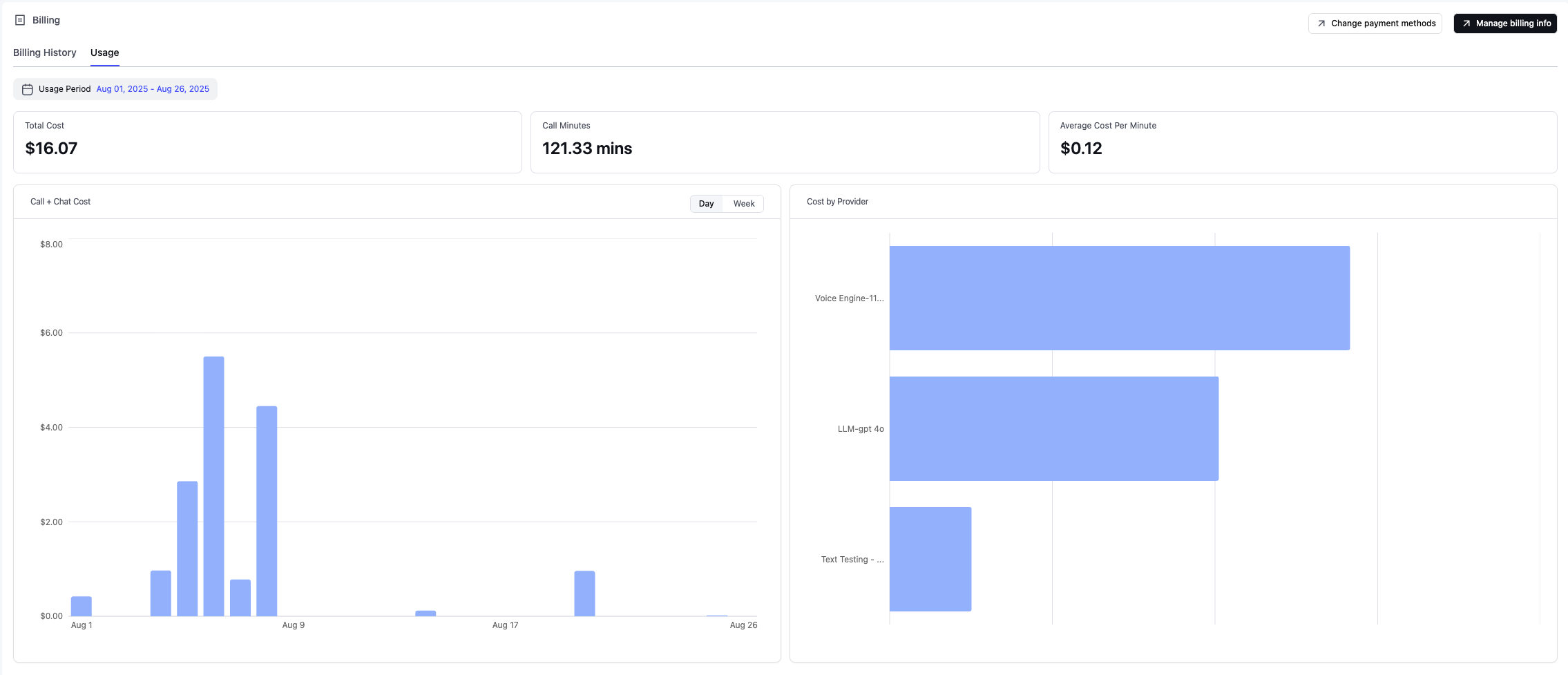
The Usage tab on the Billing page provides a breakdown of your workspace's activity and costs, regardless of billing version:
1. Total cost: Your total expenses for the selected billing period.
2. Call minutes: The total number of call minutes used.
3. Average cost per minute: The average cost for each minute of calls.
4. Daily or weekly call costs, making it easy to identify high-cost periods and track spending trends over time.
5. Cost by provider: A breakdown of expenses across voice infra, large language models (LLMs), telephony services, and concurrency usage.
What each category covers:
* **Voice infra**: Retell's conversation voice engine. This is the flat per-minute platform cost of running the real-time call, separate from LLM and telephony costs.
* **LLM**: the per-minute cost of the language model your agent uses, which varies by model.
* **Telephony**: per-minute call rates and monthly phone number fees for Retell-provided numbers. Custom telephony (SIP trunking) carries no Retell telephony charge.
* **Concurrency**: monthly fees for purchased concurrency beyond the 20 free concurrent calls.
See the [Retell pricing page](https://www.retellai.com/pricing) for current rates for each component.
Certain call characteristics can adjust the billed duration; see [Exceptions to per-minute pricing](/accounts/billing-exceptions).
## Stop charges or close your account
Because legacy accounts use post-usage billing, there is no recurring subscription to cancel and no fixed monthly fee on the pay-as-you-go plan. You are only charged for usage you actually incur (call minutes, phone numbers, knowledge bases, and other line items shown on the Billing page).
To stop accruing charges:
1. **Stop running calls.** Once no calls are made, no usage charges accrue for the next billing period.
2. **Release any phone numbers you own.** Numbers purchased through Retell are billed monthly until released. Remove the number from the Phone Numbers page in the dashboard, or call the [Delete Phone Number API](/api-references/delete-phone-number).
3. **Delete knowledge bases beyond the free tier.** Additional knowledge bases are billed monthly until deleted.
4. **Settle any outstanding invoices** on the Billing page.
If you also want to close your account entirely, follow [Delete your account](/accounts/account#delete-your-account) after completing the steps above. If you are on a custom/enterprise plan or need help confirming there are no remaining recurring charges, contact [Retell support](https://support.retellai.com/).
## View usage breakdown
The Usage tab on the Billing page provides a breakdown of your workspace's activity and costs, regardless of billing version:
1. Total cost: Your total expenses for the selected billing period.
2. Call minutes: The total number of call minutes used.
3. Average cost per minute: The average cost for each minute of calls.
4. Daily or weekly call costs, making it easy to identify high-cost periods and track spending trends over time.
5. Cost by provider: A breakdown of expenses across voice infra, large language models (LLMs), telephony services, and concurrency usage.
What each category covers:
* **Voice infra**: Retell's conversation voice engine. This is the flat per-minute platform cost of running the real-time call, separate from LLM and telephony costs.
* **LLM**: the per-minute cost of the language model your agent uses, which varies by model.
* **Telephony**: per-minute call rates and monthly phone number fees for Retell-provided numbers. Custom telephony (SIP trunking) carries no Retell telephony charge.
* **Concurrency**: monthly fees for purchased concurrency beyond the 20 free concurrent calls.
See the [Retell pricing page](https://www.retellai.com/pricing) for current rates for each component.
Certain call characteristics can adjust the billed duration; see [Exceptions to per-minute pricing](/accounts/billing-exceptions).
 ## FAQ
Open the **Billing** tab. A **Credits Balance** with **Buy credits** and **Auto recharge** means credit-based billing. Invoices only, with no credit balance, means monthly billing (legacy).
Workspaces still on monthly billing move to credit-based billing. Click **Switch now** and add credits before then. If you don't, Retell moves the workspace and the credit balance starts at **\$0**. Enterprise workspaces stay on monthly invoicing. See the [legacy billing notice](/deprecation-notice/2026/09-30_legacy_billing) for how to switch.
Credits pay for calls, chat, and other usage as it happens. Phone numbers, knowledge bases beyond the free tier, calls per second (CPS), and purchased concurrency stay on your card and are billed at the end of the month. If you add one partway through the month, that month's bill covers only the days you had it.
No. Purchased credits never expire, and they are non-refundable. Spend the balance down before you close the workspace.
On the Billing page, click **Auto recharge** and turn it on. Retell charges the card on file and buys credits when the balance drops below the amount you set (**\$10** to **\$1,000**). It restores the balance to the amount you set (**\$20** to **\$2,000**). The restored balance has to be higher than the trigger. As of September 2026. See [Set up auto recharge](#set-up-auto-recharge).
Calls, chat, and other usage stop when the credit balance reaches zero. Turn on [auto recharge](#set-up-auto-recharge) so Retell buys credits before that happens. Phone numbers and other monthly fees are separate from the credit balance. They keep billing to your card until you remove them. If a recharge payment fails, usage can still stop. See [Handle failed payments](/accounts/fail-payment).
A monthly spending cap, on workspaces that show **Budget Setting** next to **Auto recharge**. Turn **Budget** on and set an amount from **\$10** to **\$100,000** (as of September 2026). Leave it off for no cap. See [Set a monthly budget](#set-a-monthly-budget).
You get an email at 80% and at 100%, plus any extra percentages you added. At 100%, calls and API requests pause. Raise the budget or turn it off to resume, or wait until the next calendar month starts (UTC). A credit balance does not keep usage running while this pause is on.
No. Auto recharge only buys credits when the balance is low. Spending can still reach the monthly budget, and usage pauses at 100% of that budget.
The addresses you add under **Alert recipients**. If you leave that empty, the emails go to people on the workspace who can manage billing.
Yes. Billing is per workspace. A card or credit balance in one workspace does not apply to another workspace under the same login. Switch into each workspace and add a payment method there before you run calls. See [Create and manage Retell workspaces](/accounts/workspace).
No. The \$10 trial credit is for a new signup, once per email address. Switching a workspace that is already on monthly billing does not grant it again. You choose a starting amount from \$10 to \$10,000, charged to the card on file.
**Switch now** shows on workspaces still on monthly billing. If it's grayed out, ask an admin on your team. See [Access control](/accounts/access-control). Enterprise workspaces stay on monthly invoicing and don't see this button.
This documentation is built and hosted on [Mintlify](https://mintlify.com), a developer documentation platform.
## FAQ
Open the **Billing** tab. A **Credits Balance** with **Buy credits** and **Auto recharge** means credit-based billing. Invoices only, with no credit balance, means monthly billing (legacy).
Workspaces still on monthly billing move to credit-based billing. Click **Switch now** and add credits before then. If you don't, Retell moves the workspace and the credit balance starts at **\$0**. Enterprise workspaces stay on monthly invoicing. See the [legacy billing notice](/deprecation-notice/2026/09-30_legacy_billing) for how to switch.
Credits pay for calls, chat, and other usage as it happens. Phone numbers, knowledge bases beyond the free tier, calls per second (CPS), and purchased concurrency stay on your card and are billed at the end of the month. If you add one partway through the month, that month's bill covers only the days you had it.
No. Purchased credits never expire, and they are non-refundable. Spend the balance down before you close the workspace.
On the Billing page, click **Auto recharge** and turn it on. Retell charges the card on file and buys credits when the balance drops below the amount you set (**\$10** to **\$1,000**). It restores the balance to the amount you set (**\$20** to **\$2,000**). The restored balance has to be higher than the trigger. As of September 2026. See [Set up auto recharge](#set-up-auto-recharge).
Calls, chat, and other usage stop when the credit balance reaches zero. Turn on [auto recharge](#set-up-auto-recharge) so Retell buys credits before that happens. Phone numbers and other monthly fees are separate from the credit balance. They keep billing to your card until you remove them. If a recharge payment fails, usage can still stop. See [Handle failed payments](/accounts/fail-payment).
A monthly spending cap, on workspaces that show **Budget Setting** next to **Auto recharge**. Turn **Budget** on and set an amount from **\$10** to **\$100,000** (as of September 2026). Leave it off for no cap. See [Set a monthly budget](#set-a-monthly-budget).
You get an email at 80% and at 100%, plus any extra percentages you added. At 100%, calls and API requests pause. Raise the budget or turn it off to resume, or wait until the next calendar month starts (UTC). A credit balance does not keep usage running while this pause is on.
No. Auto recharge only buys credits when the balance is low. Spending can still reach the monthly budget, and usage pauses at 100% of that budget.
The addresses you add under **Alert recipients**. If you leave that empty, the emails go to people on the workspace who can manage billing.
Yes. Billing is per workspace. A card or credit balance in one workspace does not apply to another workspace under the same login. Switch into each workspace and add a payment method there before you run calls. See [Create and manage Retell workspaces](/accounts/workspace).
No. The \$10 trial credit is for a new signup, once per email address. Switching a workspace that is already on monthly billing does not grant it again. You choose a starting amount from \$10 to \$10,000, charged to the card on file.
**Switch now** shows on workspaces still on monthly billing. If it's grayed out, ask an admin on your team. See [Access control](/accounts/access-control). Enterprise workspaces stay on monthly invoicing and don't see this button.
This documentation is built and hosted on [Mintlify](https://mintlify.com), a developer documentation platform.