> ## Documentation Index
> Fetch the complete documentation index at: https://docs.retellai.com/llms.txt
> Use this file to discover all available pages before exploring further.
# Contacts
> Manage the people your Retell agents call and text: contact records keyed by phone number, custom contact fields, post-call data mappings, and CRM sync.
Contacts is your workspace's record of the people your agents talk to. Each contact is keyed by phone number and collects the conversations you've had with that person, along with any fields you choose to store about them. Those fields reach the agent as [dynamic variables](/build/dynamic-variables) on the next phone call or SMS chat. [Contact memory](/features/contact-memory) adds a running brief of previous conversations.
Open it from the **Contacts** tab under **Data** in the dashboard.
## When to use it
* **Your CRM is the source of truth.** Sync contacts in from [your CRM](/integrations/crm-overview) and map their fields to agent variables once, instead of passing the same values on every API call.
* **Conversations span more than one call.** When a long call drops or the person calls back, the agent picks up with the context from last time rather than restarting discovery.
* **You run follow-up or chase sequences.** The next call can act on what the last one produced.
* **You want one set of fields across agents.** Post-call data mappings are set per workspace, not per agent, so every agent writes to the same contact fields.
### Example
A tutoring company runs 20-minute enrollment calls. They store `program_interest`, `budget_range`, and `last_topic_discussed` as contact fields, filled from [Post Call Extraction](/features/post-call-analysis-overview). When a prospect calls back after a dropped call, the agent already has all three and resumes at the pricing conversation instead of starting over.
## How contacts are created
Contacts arrive through these flows, all matched by phone number:
* **Automatically, after a conversation.** When a phone call or SMS chat ends, Retell looks up the number (the caller's number on inbound, the number you dialed on outbound). If no contact matches, it creates one, then updates the contact's conversation count and last-conversation time. Web calls and web chats have no phone number, so they don't create contacts.
* **Manually**, from **Actions → Add contact**, or through **Actions → Upload CSV**.
* **From your CRM**, if you've connected [a CRM integration](/integrations/crm-overview) and configured inbound sync.
A phone number identifies exactly one contact. Adding a contact whose number already exists fails with "A contact with phone number +14155551000 already exists."
## Add a contact
Select **Actions → Add contact**.
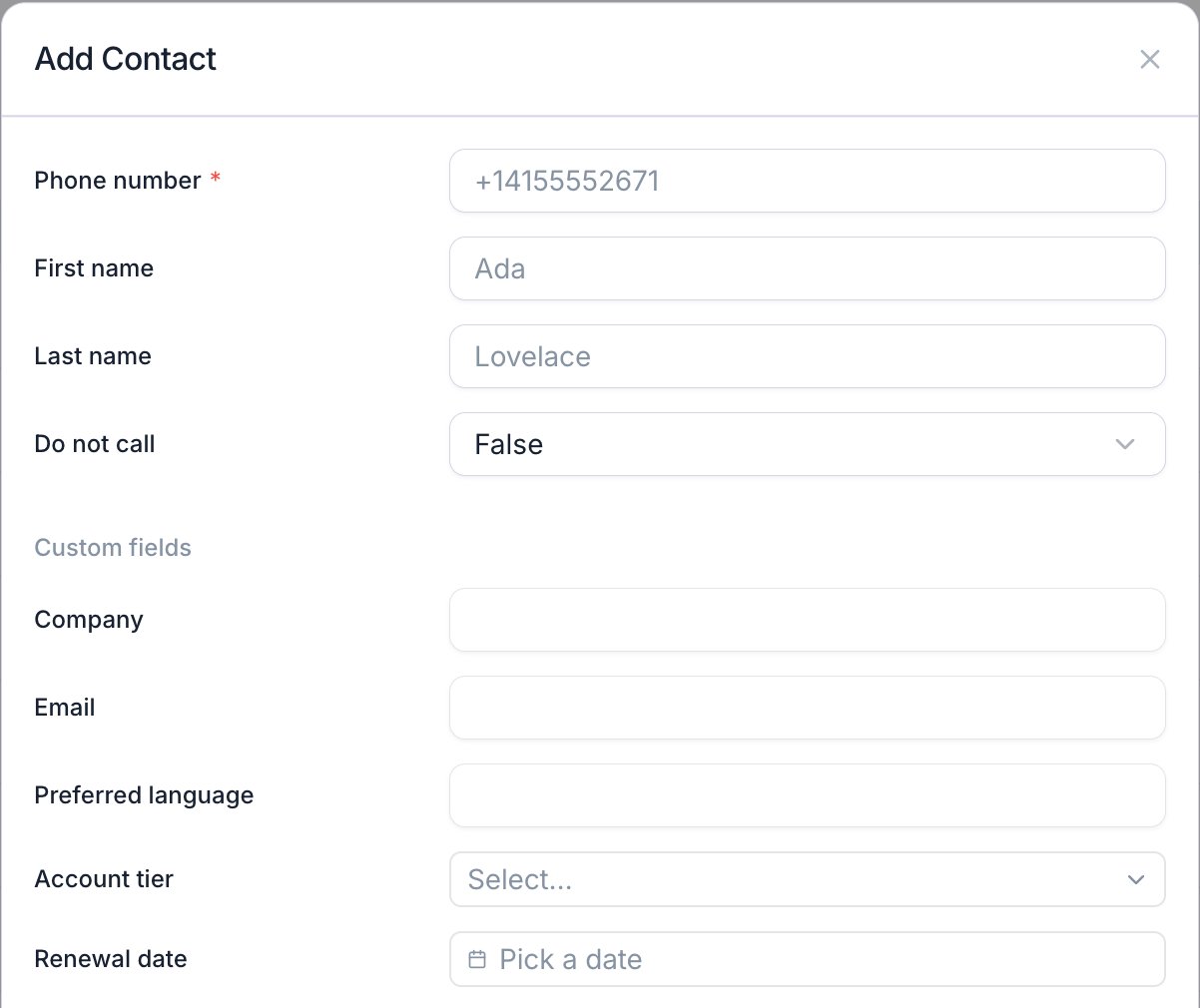 Required, and it has to be a valid number. Use E.164 format, for example `+14155552671`. This is the key everything else matches on.
First name, last name, **Do not call**, and tags are optional, as are any custom fields you've defined. Custom field values are checked against the field's type, so a number field rejects text and an enum field rejects values outside its options.
Select **Create**. The contact appears in the table right away, with no conversations attached until one happens.
## Work with the contacts table
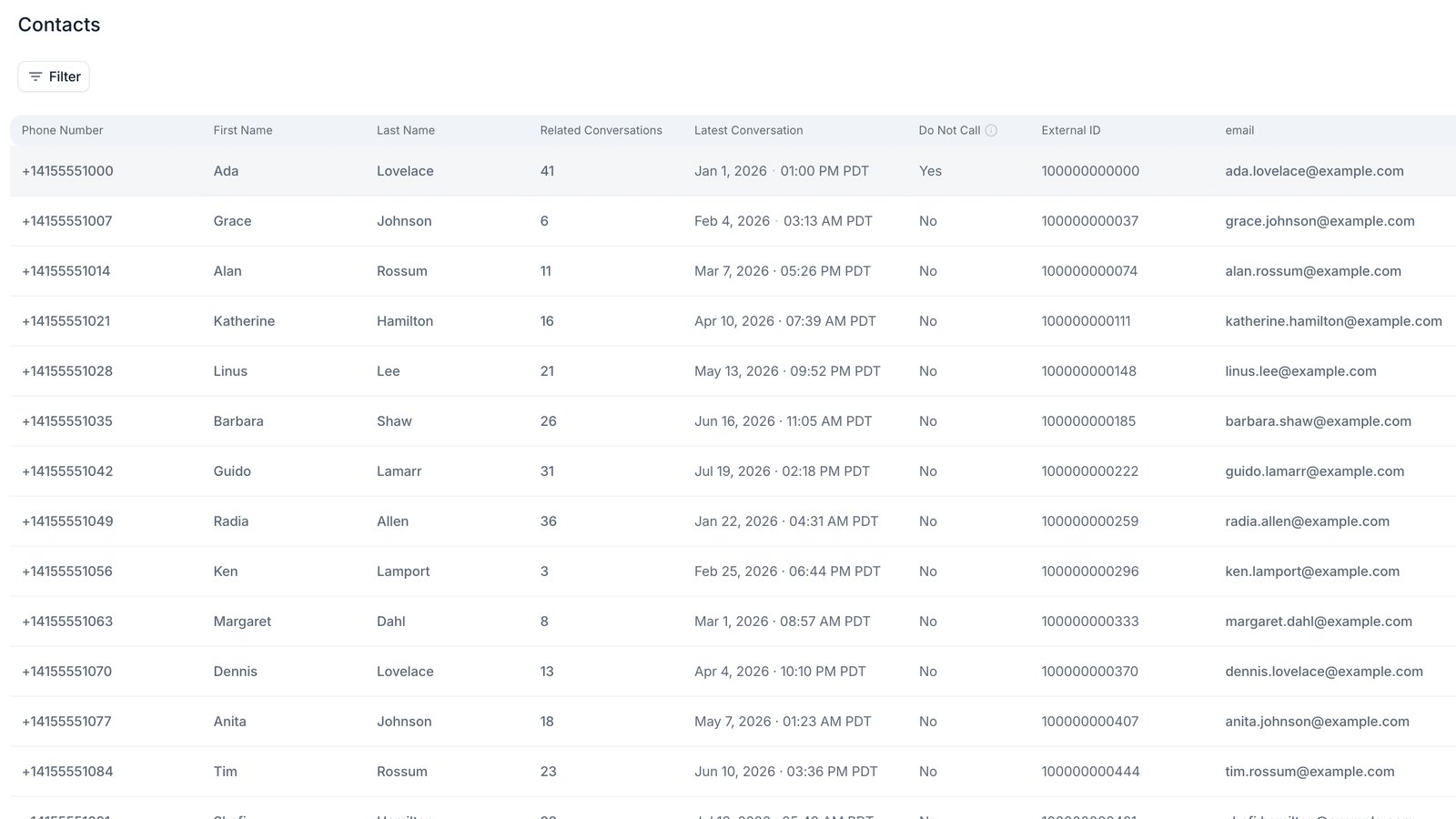
The table lists every contact in the workspace with these built-in columns, plus one for each custom field you've defined:
| Column | What it shows |
| - | - |
| Phone Number | The contact's number, and the key used to match conversations. |
| First Name / Last Name | Set manually, synced from your CRM, or written by Post Call Extraction. |
| Contact ID | The record's identifier, for example `contact_9f2c41ab77de05c3aa61e480`. |
| Related Conversations | How many calls and chats are attached to this contact. |
| Latest Conversation | When you last spoke to them. |
| Do Not Call | A flag you can set, filter on, and sync with your CRM. Outbound calls, SMS, and campaigns set to honor DNC skip these contacts, and [Do-not-contact Handling](/build/do-not-call) sets it when a caller asks not to be called. |
| External ID | The record ID in the connected CRM, when the contact came from one. |
| Tags | Custom labels for filtering and organizing contacts. |
The settings icon above the table, labelled **Manage table**, controls which columns appear and in what order. The arrangement is saved for the workspace, so everyone sees the same table.
**Search** matches phone number, first name, last name, external ID, and custom field values.
**Filters** narrow by phone number, external ID (including whether one exists at all), do-not-call, last conversation time, tags, and any custom field.
## Open a contact
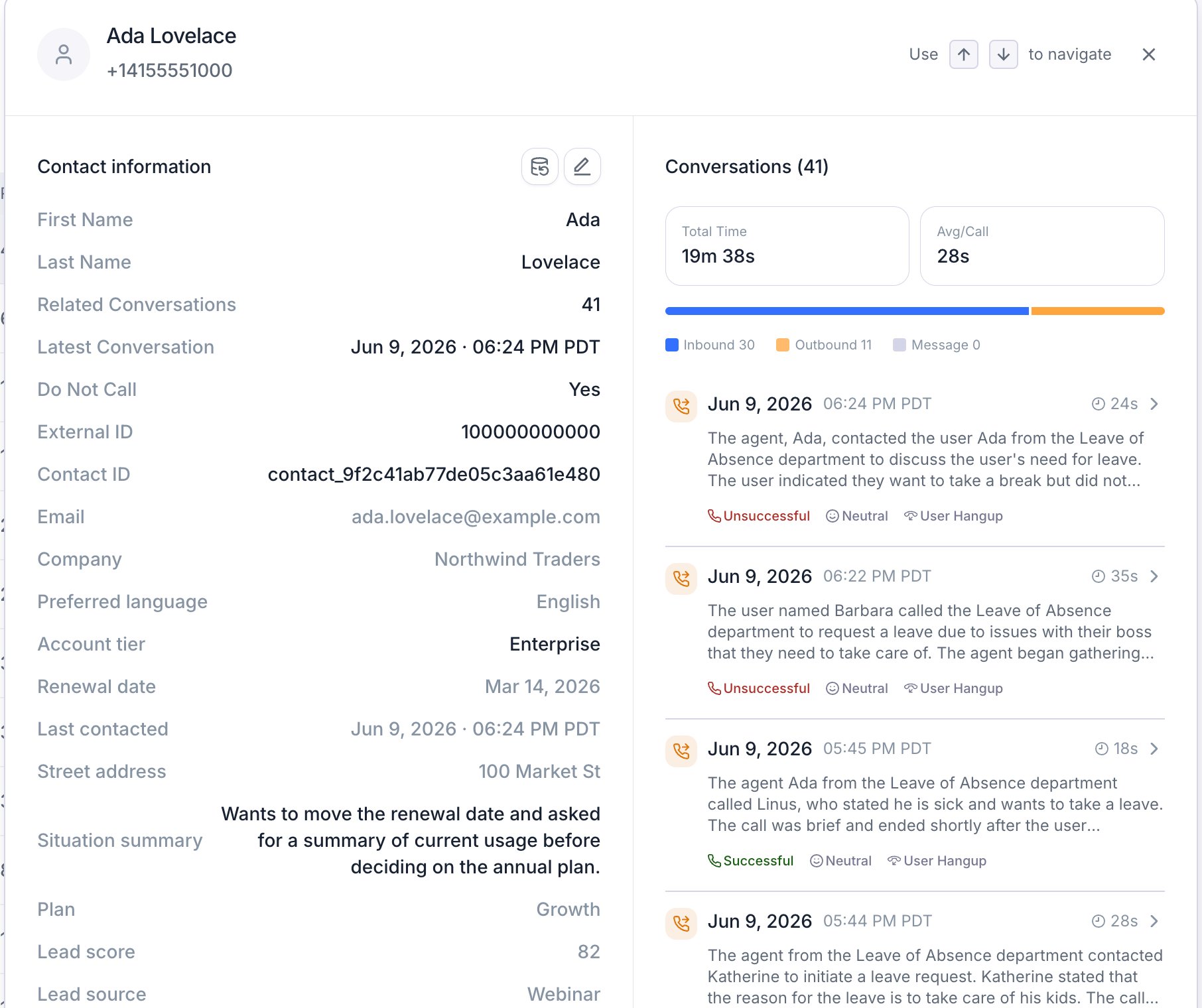
Selecting a row opens a panel with two halves:
* **Contact information** lists every field on the record and lets you edit them in place. Saving an edit on a CRM-linked contact also pushes the change back to your CRM, if outbound sync is configured.
* **Conversations** lists the calls and chats attached to that number, newest first, with total time and a split of inbound calls, outbound calls, and messages. Selecting one opens the full session.
Use the up and down arrow keys to step through contacts without closing the panel.
Required, and it has to be a valid number. Use E.164 format, for example `+14155552671`. This is the key everything else matches on.
First name, last name, **Do not call**, and tags are optional, as are any custom fields you've defined. Custom field values are checked against the field's type, so a number field rejects text and an enum field rejects values outside its options.
Select **Create**. The contact appears in the table right away, with no conversations attached until one happens.
## Work with the contacts table
The table lists every contact in the workspace with these built-in columns, plus one for each custom field you've defined:
| Column | What it shows |
| - | - |
| Phone Number | The contact's number, and the key used to match conversations. |
| First Name / Last Name | Set manually, synced from your CRM, or written by Post Call Extraction. |
| Contact ID | The record's identifier, for example `contact_9f2c41ab77de05c3aa61e480`. |
| Related Conversations | How many calls and chats are attached to this contact. |
| Latest Conversation | When you last spoke to them. |
| Do Not Call | A flag you can set, filter on, and sync with your CRM. Outbound calls, SMS, and campaigns set to honor DNC skip these contacts, and [Do-not-contact Handling](/build/do-not-call) sets it when a caller asks not to be called. |
| External ID | The record ID in the connected CRM, when the contact came from one. |
| Tags | Custom labels for filtering and organizing contacts. |
The settings icon above the table, labelled **Manage table**, controls which columns appear and in what order. The arrangement is saved for the workspace, so everyone sees the same table.
**Search** matches phone number, first name, last name, external ID, and custom field values.
**Filters** narrow by phone number, external ID (including whether one exists at all), do-not-call, last conversation time, tags, and any custom field.
## Open a contact
Selecting a row opens a panel with two halves:
* **Contact information** lists every field on the record and lets you edit them in place. Saving an edit on a CRM-linked contact also pushes the change back to your CRM, if outbound sync is configured.
* **Conversations** lists the calls and chats attached to that number, newest first, with total time and a split of inbound calls, outbound calls, and messages. Selecting one opens the full session.
Use the up and down arrow keys to step through contacts without closing the panel.
 ## View and edit conversation memory
The **Conversation Memory** field in **Contact information** holds the contact's running brief. Select **View all** to expand a long memory and **View less** to collapse it.
If the contact has no saved memory, the field shows “No memory yet. Conversation memory can be enabled in agent settings.” This message appears regardless of the agents' settings. To check whether an agent saves memory, open **Post call memory settings** on that agent and check **Save conversation to memory**.
## View and edit conversation memory
The **Conversation Memory** field in **Contact information** holds the contact's running brief. Select **View all** to expand a long memory and **View less** to collapse it.
If the contact has no saved memory, the field shows “No memory yet. Conversation memory can be enabled in agent settings.” This message appears regardless of the agents' settings. To check whether an agent saves memory, open **Post call memory settings** on that agent and check **Save conversation to memory**.
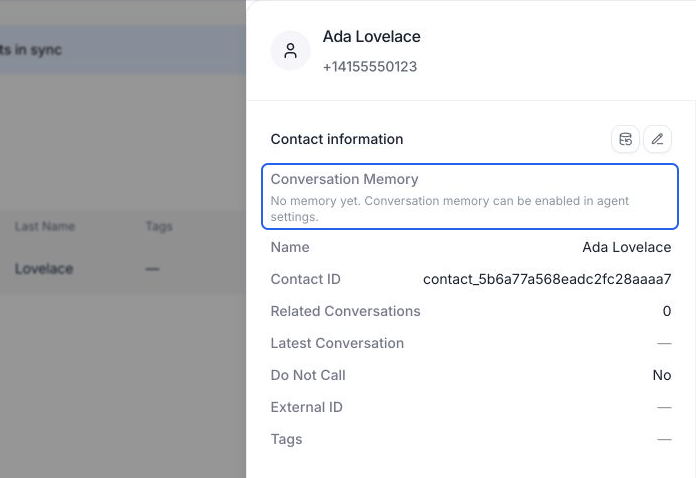 The editor appears once a contact has nonempty memory. For an empty contact, generate memory from an eligible conversation or use [backfill](#backfill-fields-from-past-conversations) first.
To update existing memory:
Open the contact and select **Edit** in **Contact information**. Update **Conversation Memory** inline, or use its expand control for a larger editor.
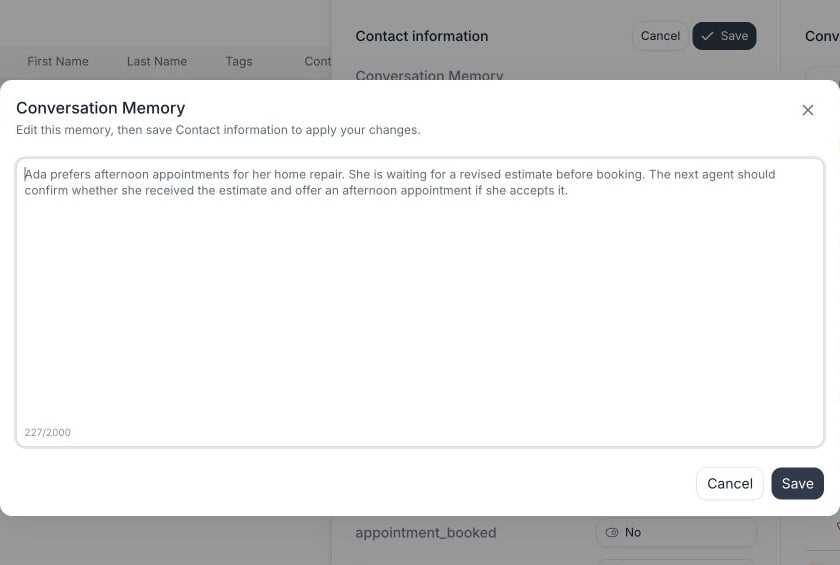
In the expanded editor, select **Save** to place your draft back into the contact form. This does **not** save the contact yet. **Cancel** discards edits made inside that dialog.
Select **Save** in **Contact information** to persist the memory and any other field edits. Memory accepts up to **2,000 characters** (as of September 2026); over-limit text blocks saving. If saving fails, keep the form open and retry after resolving the error.
The editor appears once a contact has nonempty memory. For an empty contact, generate memory from an eligible conversation or use [backfill](#backfill-fields-from-past-conversations) first.
To update existing memory:
Open the contact and select **Edit** in **Contact information**. Update **Conversation Memory** inline, or use its expand control for a larger editor.
In the expanded editor, select **Save** to place your draft back into the contact form. This does **not** save the contact yet. **Cancel** discards edits made inside that dialog.
Select **Save** in **Contact information** to persist the memory and any other field edits. Memory accepts up to **2,000 characters** (as of September 2026); over-limit text blocks saving. If saving fails, keep the form open and retry after resolving the error.
 To clear memory, delete its text and save Contact information. Clearing it doesn't disable future updates. Later conversations can write new memory if **Save conversation to memory** remains enabled on their agents. See [agent memory settings](/features/contact-memory#set-up-memory-on-an-agent) for saving, reading, and the workspace prompt.
## Define contact fields
Beyond the built-in fields, you can define custom fields to store anything else you want to keep about a person. Open **Actions → Manage contact fields**.
The fields table shows, for each field, its type, the CRM field it syncs with, the Post Call Extraction field that writes to it, and when it last changed.
To clear memory, delete its text and save Contact information. Clearing it doesn't disable future updates. Later conversations can write new memory if **Save conversation to memory** remains enabled on their agents. See [agent memory settings](/features/contact-memory#set-up-memory-on-an-agent) for saving, reading, and the workspace prompt.
## Define contact fields
Beyond the built-in fields, you can define custom fields to store anything else you want to keep about a person. Open **Actions → Manage contact fields**.
The fields table shows, for each field, its type, the CRM field it syncs with, the Post Call Extraction field that writes to it, and when it last changed.
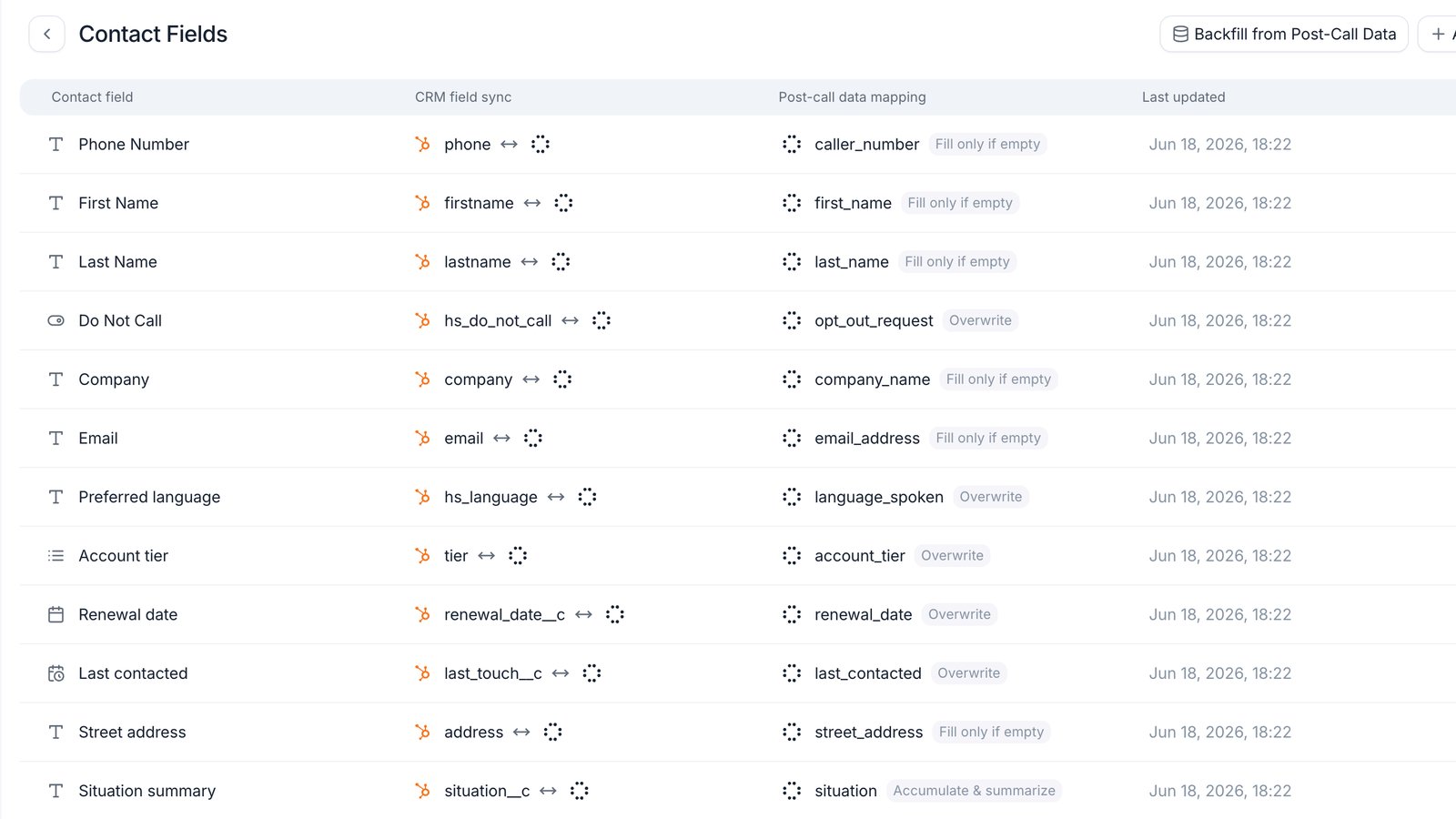
Select **Add Contact Field**, then pick a **type**: Text, Number, Boolean, Selector, Date, or Datetime. Type is fixed after creation, so choose deliberately.
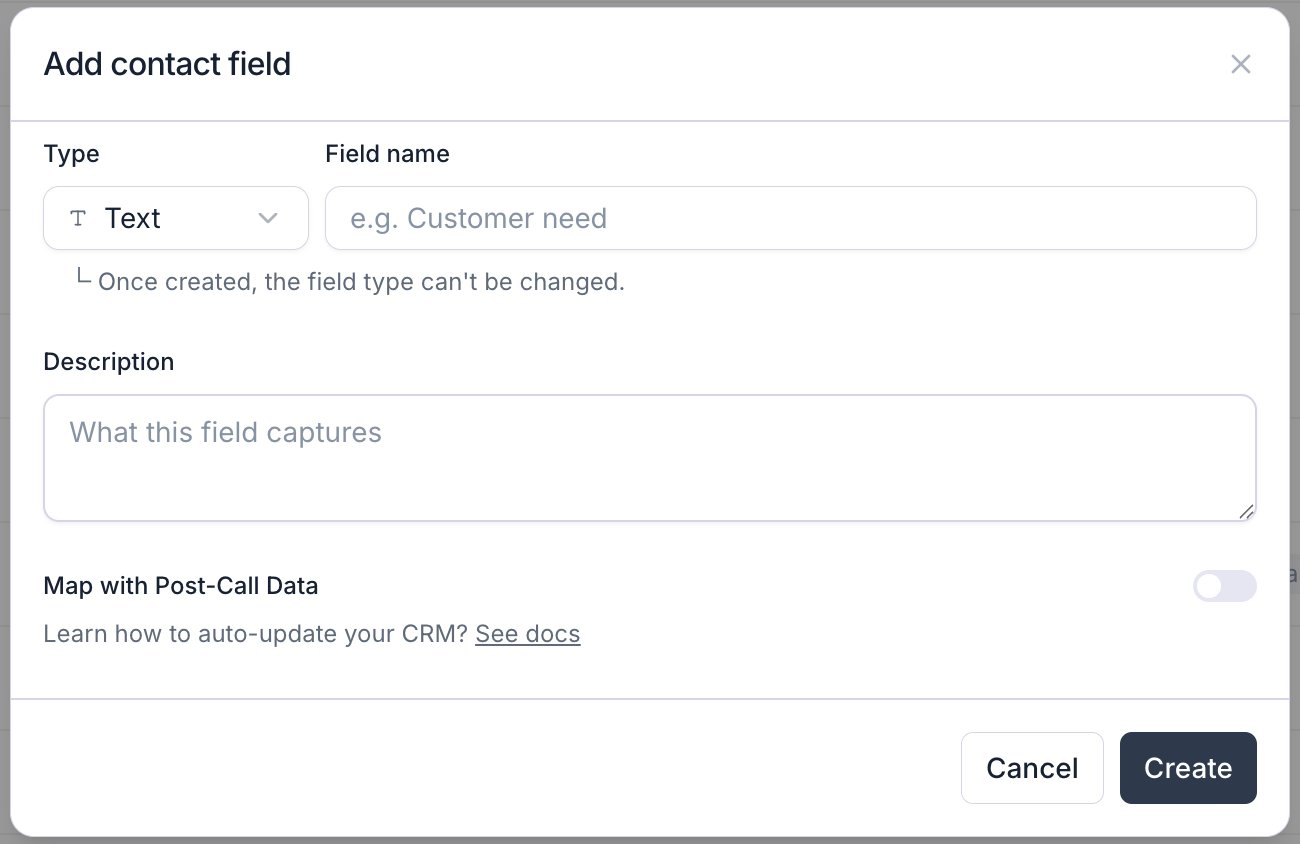 Field names are snake\_case: lowercase letters, numbers, and underscores, starting with a letter. Names can't collide with the built-in fields, can't start with `contact` or `external` (both reserved), and can't repeat an existing field.
The description tells you what the field captures. It does more than document: for fields filled by Post Call Extraction with **Accumulate & summarize**, the description is the instruction the model follows when combining an old value with a new one.
Turn on the post-call mapping, choose the analysis field that feeds it, and pick how new values combine with existing ones:
* **Overwrite** replaces the stored value every time.
* **Fill only if empty** writes once and leaves it alone after that.
* **Accumulate & summarize** merges the old and new values with a model, following your field description.
Mappings apply to the whole workspace, so any agent producing that analysis field writes to this contact field. See [CRM data mappings](/integrations/crm-mappings) for mapping details. Built-in [contact memory](/features/contact-memory) saves a separate conversation brief without these mappings.
Built-in fields behave differently from custom ones. First name, last name, do-not-call, and tags can be edited and mapped, but not deleted. Phone number is fixed. Custom fields can be edited or deleted.
## Import from CSV
Use **Actions → Upload CSV** to import a contact list, such as leads from an event. Include a header row and a phone number column. CSV files can be up to **50 MB**.
Contacts are matched by phone number. If a number already exists, the import overwrites its mapped fields and leaves unmapped fields unchanged. New numbers create new contacts. Imported tags are added to existing tags without duplicates.
Select your CSV file, review the preview, then select **Continue**.
Field names are snake\_case: lowercase letters, numbers, and underscores, starting with a letter. Names can't collide with the built-in fields, can't start with `contact` or `external` (both reserved), and can't repeat an existing field.
The description tells you what the field captures. It does more than document: for fields filled by Post Call Extraction with **Accumulate & summarize**, the description is the instruction the model follows when combining an old value with a new one.
Turn on the post-call mapping, choose the analysis field that feeds it, and pick how new values combine with existing ones:
* **Overwrite** replaces the stored value every time.
* **Fill only if empty** writes once and leaves it alone after that.
* **Accumulate & summarize** merges the old and new values with a model, following your field description.
Mappings apply to the whole workspace, so any agent producing that analysis field writes to this contact field. See [CRM data mappings](/integrations/crm-mappings) for mapping details. Built-in [contact memory](/features/contact-memory) saves a separate conversation brief without these mappings.
Built-in fields behave differently from custom ones. First name, last name, do-not-call, and tags can be edited and mapped, but not deleted. Phone number is fixed. Custom fields can be edited or deleted.
## Import from CSV
Use **Actions → Upload CSV** to import a contact list, such as leads from an event. Include a header row and a phone number column. CSV files can be up to **50 MB**.
Contacts are matched by phone number. If a number already exists, the import overwrites its mapped fields and leaves unmapped fields unchanged. New numbers create new contacts. Imported tags are added to existing tags without duplicates.
Select your CSV file, review the preview, then select **Continue**.
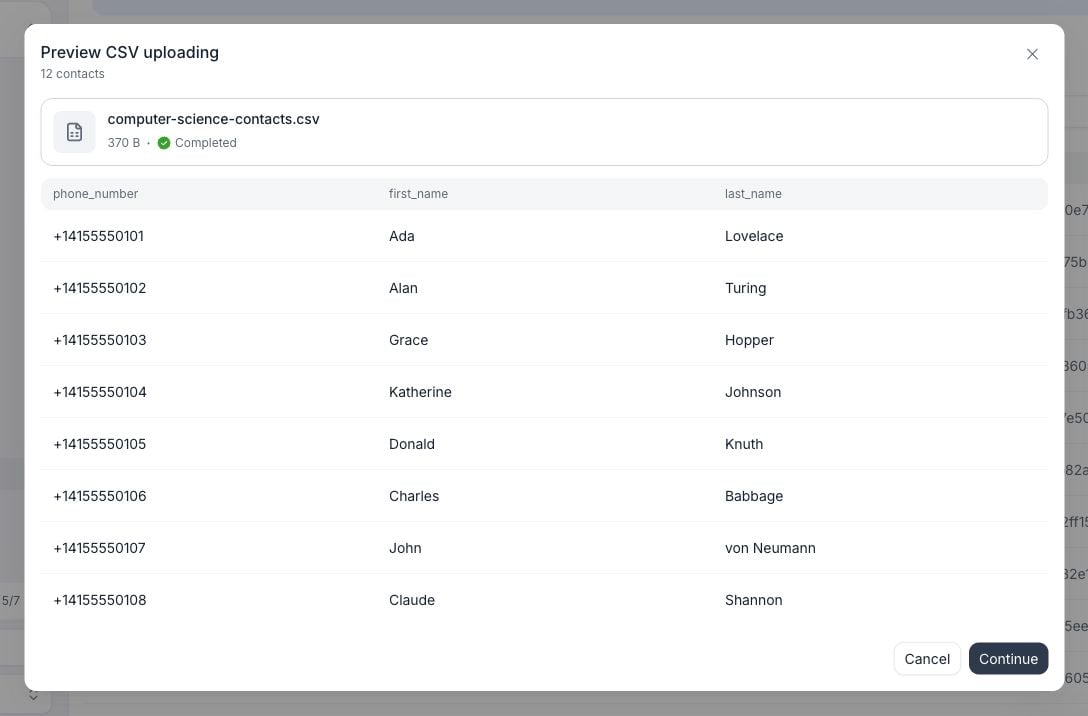 Select the columns to import and map each to a contact field. Map exactly one column to **Phone Number**; each contact field can receive only one CSV column. You can select an existing field or create a custom field from the mapping selector.
Choose the default country for phone numbers that don't include a country code, then select **Confirm mapping**.
Optionally select existing tags or type to create new ones, for example `event_lead`. These tags apply to every contact in the import. Leaving this step empty keeps existing contacts' tags unchanged.
Select **Confirm** to submit the import.
## Use contact data in a conversation
When a phone call or SMS chat starts, Retell looks up the contact by number and passes its fields to the agent as dynamic variables: `first_name`, `last_name`, `do_not_call`, `contact_memory` when stored, and one per custom field, each named after the field. Reference them in the prompt the same way as any other [dynamic variable](/build/dynamic-variables), for example `{{first_name}}`.
This applies to inbound calls, outbound calls, [batch calls](/deploy/make-batch-call), and SMS chats. If no contact matches the number, the variables are absent, so write prompts that read naturally without them. Enable **Use contact memory** to include stored memory in the agent's context automatically, without adding a variable to its prompt.
## Read contacts from the API
The [Contact API](/api-references/get-contact) returns the same records the dashboard shows, so your own systems can check who you've already spoken to before placing a call. Every contact carries:
| Field | What it holds |
| - | - |
| `contact_id`, `phone_number` | The record's identifier and its E.164 phone number. |
| `first_name`, `last_name`, `external_id` | Name, and the record ID in your connected CRM. |
| `do_not_call` | The do-not-call flag. |
| `contact_tags`, `custom_fields` | Tags, and one value per custom contact field. |
| `conversation_count` | How many phone calls and chats are attached to the number. |
| `last_conversation_timestamp` | Start time of the most recent conversation, in epoch milliseconds. |
| `created_timestamp`, `user_modified_timestamp` | When the contact was created and last edited, in epoch milliseconds. |
Use these endpoints to read them:
* [Get contact by phone](/api-references/get-contact-by-phone) looks up one number. Send it in E.164 format.
* [List contacts](/api-references/list-contacts) filters the whole set by `last_conversation_timestamp`, `do_not_call`, `external_id`, tags, and custom fields, up to 1,000 per page.
* [List contact conversations](/api-references/list-contact-conversations) returns every call and chat with the number, newest first, with each one's start time, duration, direction, disconnection reason, summary, sentiment, and success flag.
The counts update when a phone call or SMS chat ends, after post-call analysis runs, so expect a short delay after hang-up. Every outbound phone call counts as a conversation, including ones that reach voicemail or go unanswered, so a cooldown based on `last_conversation_timestamp` also covers dial attempts. Web calls and web chats never count.
## Limit how often you call a number
Retell doesn't cap how often your agent calls a number. [Create Phone Call](/api-references/create-phone-call) checks `do_not_call` only when you pass `honor_internal_dnc: true` (see [do-not-call requests](/build/do-not-call#skip-do-not-call-contacts)), and [batch calls](/deploy/make-batch-call) don't check it. To avoid calling someone too often, check the contact before you dial.
A debt collection team, for example, calls each customer at most once every 48 hours. Before each call, their dialer looks up the number and skips it if the last conversation was too recent:
```bash theme={"dark"}
curl "https://api.retellai.com/get-contact-by-phone/+14155551000" \
-H "Authorization: Bearer $RETELL_API_KEY"
```
```json theme={"dark"}
{
"contact_id": "contact_9f2c41ab77de05c3aa61e480",
"phone_number": "+14155551000",
"do_not_call": false,
"conversation_count": 4,
"last_conversation_timestamp": 1790380800000,
"created_timestamp": 1787702400000
}
```
Skip the call if `do_not_call` is `true` or `last_conversation_timestamp` is less than 48 hours ago. A `404` means you've never spoken to that number, so it's safe to call.
To build a whole call list at once, ask List contacts for everyone last spoken to before your cutoff who isn't marked do-not-call:
```bash theme={"dark"}
curl -X POST "https://api.retellai.com/list-contacts" \
-H "Authorization: Bearer $RETELL_API_KEY" \
-H "Content-Type: application/json" \
-d '{
"limit": 1000,
"sort_order": "asc",
"filter_criteria": {
"last_conversation_timestamp": { "type": "number", "op": "lt", "value": 1790208000000 },
"do_not_call": { "type": "boolean", "op": "eq", "value": false }
}
}'
```
For a rule like "no more than three calls a week", list the contact's conversations and count the calls whose `start_timestamp` falls inside the window.
## Backfill fields from past conversations
Enabling memory saving or adding an extraction mapping only affects future conversations. To populate contacts from past phone calls and SMS chats, open **Actions → Backfill**. The dialog is titled **Backfill from past conversations**.
Select **Memory**, mapped contact fields, or both. **Memory** is always a built-in target and needs no Post Call Extraction mapping. Other fields appear only when they have an analysis mapping.
Choose an **Agent** filter, optionally with versions, or a **Conversation time** filter. At least one agent or time bound is required. Review the selected range before running the job.
Select **Backfill**. The Contacts header shows backfill activity, and a notification tracks the job and reports completion or errors. If starting the job fails, the dialog stays open with your selection and an error.
Select the columns to import and map each to a contact field. Map exactly one column to **Phone Number**; each contact field can receive only one CSV column. You can select an existing field or create a custom field from the mapping selector.
Choose the default country for phone numbers that don't include a country code, then select **Confirm mapping**.
Optionally select existing tags or type to create new ones, for example `event_lead`. These tags apply to every contact in the import. Leaving this step empty keeps existing contacts' tags unchanged.
Select **Confirm** to submit the import.
## Use contact data in a conversation
When a phone call or SMS chat starts, Retell looks up the contact by number and passes its fields to the agent as dynamic variables: `first_name`, `last_name`, `do_not_call`, `contact_memory` when stored, and one per custom field, each named after the field. Reference them in the prompt the same way as any other [dynamic variable](/build/dynamic-variables), for example `{{first_name}}`.
This applies to inbound calls, outbound calls, [batch calls](/deploy/make-batch-call), and SMS chats. If no contact matches the number, the variables are absent, so write prompts that read naturally without them. Enable **Use contact memory** to include stored memory in the agent's context automatically, without adding a variable to its prompt.
## Read contacts from the API
The [Contact API](/api-references/get-contact) returns the same records the dashboard shows, so your own systems can check who you've already spoken to before placing a call. Every contact carries:
| Field | What it holds |
| - | - |
| `contact_id`, `phone_number` | The record's identifier and its E.164 phone number. |
| `first_name`, `last_name`, `external_id` | Name, and the record ID in your connected CRM. |
| `do_not_call` | The do-not-call flag. |
| `contact_tags`, `custom_fields` | Tags, and one value per custom contact field. |
| `conversation_count` | How many phone calls and chats are attached to the number. |
| `last_conversation_timestamp` | Start time of the most recent conversation, in epoch milliseconds. |
| `created_timestamp`, `user_modified_timestamp` | When the contact was created and last edited, in epoch milliseconds. |
Use these endpoints to read them:
* [Get contact by phone](/api-references/get-contact-by-phone) looks up one number. Send it in E.164 format.
* [List contacts](/api-references/list-contacts) filters the whole set by `last_conversation_timestamp`, `do_not_call`, `external_id`, tags, and custom fields, up to 1,000 per page.
* [List contact conversations](/api-references/list-contact-conversations) returns every call and chat with the number, newest first, with each one's start time, duration, direction, disconnection reason, summary, sentiment, and success flag.
The counts update when a phone call or SMS chat ends, after post-call analysis runs, so expect a short delay after hang-up. Every outbound phone call counts as a conversation, including ones that reach voicemail or go unanswered, so a cooldown based on `last_conversation_timestamp` also covers dial attempts. Web calls and web chats never count.
## Limit how often you call a number
Retell doesn't cap how often your agent calls a number. [Create Phone Call](/api-references/create-phone-call) checks `do_not_call` only when you pass `honor_internal_dnc: true` (see [do-not-call requests](/build/do-not-call#skip-do-not-call-contacts)), and [batch calls](/deploy/make-batch-call) don't check it. To avoid calling someone too often, check the contact before you dial.
A debt collection team, for example, calls each customer at most once every 48 hours. Before each call, their dialer looks up the number and skips it if the last conversation was too recent:
```bash theme={"dark"}
curl "https://api.retellai.com/get-contact-by-phone/+14155551000" \
-H "Authorization: Bearer $RETELL_API_KEY"
```
```json theme={"dark"}
{
"contact_id": "contact_9f2c41ab77de05c3aa61e480",
"phone_number": "+14155551000",
"do_not_call": false,
"conversation_count": 4,
"last_conversation_timestamp": 1790380800000,
"created_timestamp": 1787702400000
}
```
Skip the call if `do_not_call` is `true` or `last_conversation_timestamp` is less than 48 hours ago. A `404` means you've never spoken to that number, so it's safe to call.
To build a whole call list at once, ask List contacts for everyone last spoken to before your cutoff who isn't marked do-not-call:
```bash theme={"dark"}
curl -X POST "https://api.retellai.com/list-contacts" \
-H "Authorization: Bearer $RETELL_API_KEY" \
-H "Content-Type: application/json" \
-d '{
"limit": 1000,
"sort_order": "asc",
"filter_criteria": {
"last_conversation_timestamp": { "type": "number", "op": "lt", "value": 1790208000000 },
"do_not_call": { "type": "boolean", "op": "eq", "value": false }
}
}'
```
For a rule like "no more than three calls a week", list the contact's conversations and count the calls whose `start_timestamp` falls inside the window.
## Backfill fields from past conversations
Enabling memory saving or adding an extraction mapping only affects future conversations. To populate contacts from past phone calls and SMS chats, open **Actions → Backfill**. The dialog is titled **Backfill from past conversations**.
Select **Memory**, mapped contact fields, or both. **Memory** is always a built-in target and needs no Post Call Extraction mapping. Other fields appear only when they have an analysis mapping.
Choose an **Agent** filter, optionally with versions, or a **Conversation time** filter. At least one agent or time bound is required. Review the selected range before running the job.
Select **Backfill**. The Contacts header shows backfill activity, and a notification tracks the job and reports completion or errors. If starting the job fails, the dialog stays open with your selection and an error.
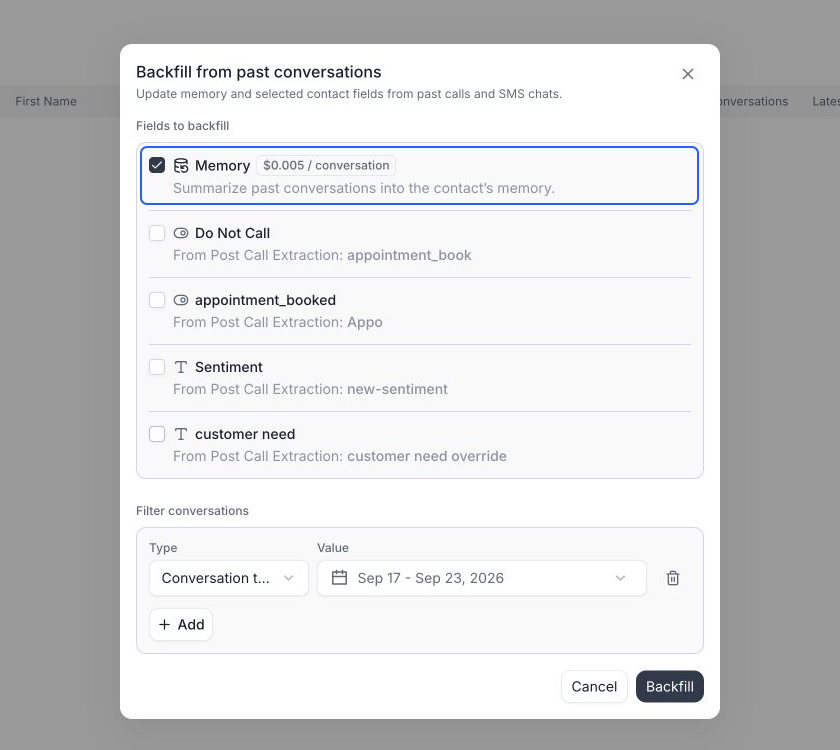 For **memory backfill**:
* The agent's **latest configuration** must have **Save conversation to memory** enabled. This lets you process earlier conversations even if saving wasn't enabled when they happened.
* Only ended phone calls and SMS chats with retained transcripts are eligible. Conversations stored with **Basic Attributes Only**, missing or unreadable transcripts, and transcripts with failed PII redaction are skipped. A conversation also needs a usable user message to generate memory.
* Retell starts with the contact's current memory and processes selected conversations oldest first, using the **current workspace memory prompt**. A failed or empty rewrite keeps the previous brief.
* The price is **\$0.005 per conversation processed** as of September 2026, not per contact. Repeating a backfill can process and charge for the same conversations again.
Mapped fields use existing Post Call Extraction results and their configured update modes. To regenerate those extraction results, [rerun analysis](/features/rerun-call-analysis) first.
Only one contact backfill can run at a time per workspace. If one is already running, wait for it to finish before starting another. After completion, open a contact to check the result. If memory is still empty, check agent eligibility, the selected time range, and transcript availability before retrying.
## Keep contacts in sync with your CRM
With [a CRM connected](/integrations/crm-overview), contacts sync both directions: CRM records flow in as contacts, and edits flow back out. Two entries in the **Actions** menu control it, both disabled until a CRM is connected:
* **Manage CRM sync** opens the field mapping settings. See [CRM data mappings](/integrations/crm-mappings).
* **Run full sync** re-imports the full contact set instead of waiting for the next scheduled sync.
While two-way sync is active, contacts that came from the CRM are locked against deletion, so the CRM stays the source of truth for those records.
## Who can use it
Contacts needs CRM view permission to open, and CRM edit permission for anything that changes data: adding contacts, editing fields or memory, running a backfill, or triggering a full sync. Without edit permission the controls are visible but disabled. See [Access Control](/accounts/access-control).
## FAQ
Yes. [Import from CSV](#import-from-csv) to map your columns to contact fields and optionally tag the imported contacts. If your contacts live in a CRM, [connect the CRM](/integrations/crm-overview) and let inbound sync bring them in instead.
Ending a phone call or SMS chat with a number that has no contact creates one. That's what links a conversation to a person and lets the next call reuse what the last one learned.
No. The number is the identifier, and creating a duplicate is rejected.
Conversations attach by phone number, so check that the number on the call matches the contact exactly. Web calls and web chats carry no phone number and never attach to a contact.
Use [Delete Contact](/api-references/delete-contact); the dashboard doesn't offer contact deletion today. You can clear a contact's field values by editing it, and you can delete custom contact fields from the contact fields page. Contacts synced from a CRM are locked against deletion while two-way sync is active.
The contacts stay. They keep their fields and their conversation history, and the External ID showing where they came from. Syncing stops, so later changes on either side no longer cross over.
This documentation is built and hosted on [Mintlify](https://mintlify.com), a developer documentation platform.
For **memory backfill**:
* The agent's **latest configuration** must have **Save conversation to memory** enabled. This lets you process earlier conversations even if saving wasn't enabled when they happened.
* Only ended phone calls and SMS chats with retained transcripts are eligible. Conversations stored with **Basic Attributes Only**, missing or unreadable transcripts, and transcripts with failed PII redaction are skipped. A conversation also needs a usable user message to generate memory.
* Retell starts with the contact's current memory and processes selected conversations oldest first, using the **current workspace memory prompt**. A failed or empty rewrite keeps the previous brief.
* The price is **\$0.005 per conversation processed** as of September 2026, not per contact. Repeating a backfill can process and charge for the same conversations again.
Mapped fields use existing Post Call Extraction results and their configured update modes. To regenerate those extraction results, [rerun analysis](/features/rerun-call-analysis) first.
Only one contact backfill can run at a time per workspace. If one is already running, wait for it to finish before starting another. After completion, open a contact to check the result. If memory is still empty, check agent eligibility, the selected time range, and transcript availability before retrying.
## Keep contacts in sync with your CRM
With [a CRM connected](/integrations/crm-overview), contacts sync both directions: CRM records flow in as contacts, and edits flow back out. Two entries in the **Actions** menu control it, both disabled until a CRM is connected:
* **Manage CRM sync** opens the field mapping settings. See [CRM data mappings](/integrations/crm-mappings).
* **Run full sync** re-imports the full contact set instead of waiting for the next scheduled sync.
While two-way sync is active, contacts that came from the CRM are locked against deletion, so the CRM stays the source of truth for those records.
## Who can use it
Contacts needs CRM view permission to open, and CRM edit permission for anything that changes data: adding contacts, editing fields or memory, running a backfill, or triggering a full sync. Without edit permission the controls are visible but disabled. See [Access Control](/accounts/access-control).
## FAQ
Yes. [Import from CSV](#import-from-csv) to map your columns to contact fields and optionally tag the imported contacts. If your contacts live in a CRM, [connect the CRM](/integrations/crm-overview) and let inbound sync bring them in instead.
Ending a phone call or SMS chat with a number that has no contact creates one. That's what links a conversation to a person and lets the next call reuse what the last one learned.
No. The number is the identifier, and creating a duplicate is rejected.
Conversations attach by phone number, so check that the number on the call matches the contact exactly. Web calls and web chats carry no phone number and never attach to a contact.
Use [Delete Contact](/api-references/delete-contact); the dashboard doesn't offer contact deletion today. You can clear a contact's field values by editing it, and you can delete custom contact fields from the contact fields page. Contacts synced from a CRM are locked against deletion while two-way sync is active.
The contacts stay. They keep their fields and their conversation history, and the External ID showing where they came from. Syncing stops, so later changes on either side no longer cross over.
This documentation is built and hosted on [Mintlify](https://mintlify.com), a developer documentation platform.