> ## Documentation Index
> Fetch the complete documentation index at: https://docs.retellai.com/llms.txt
> Use this file to discover all available pages before exploring further.
# Monitor live calls
> Watch ongoing Retell calls live: follow the transcript, listen in silently, take over from the agent, or end the call, from the dashboard or the Web SDK.
Live Monitoring shows the calls happening in your workspace right now. Open any active call to follow its transcript as the conversation unfolds, listen in silently, take over from the agent, or end the call.
[Call & chat history](/features/session-history) and [Post Call Extraction](/features/post-call-analysis-overview) work after a call ends. Live Monitoring is the view for a call that's still in progress.
## When to use it
Reach for Live Monitoring when you need eyes or ears on a call before it ends:
* **Supervise agents and QA in real time.** [Listen silently](#live-listen) to live calls to judge quality, tone, and where the agent needs coaching. The caller and the agent never know you're there.
* **Rescue a call.** When the agent is stuck or the caller asks for a person, [take over](#take-over) and speak with the caller yourself.
* **Spot-check compliance.** Audit sensitive or high-stakes conversations as they happen, instead of catching problems only in review.
For example, a support lead keeps Live Monitoring open during a hiring campaign's busy hours. When a candidate-screening call stalls (the agent keeps re-asking the same question), the lead opens the call, confirms the loop in the live transcript, and takes over to finish the screening in person.
Live Monitoring isn't built for after-the-fact review. To search and filter finished calls, use [call & chat history](/features/session-history); for automatic scoring and structured data on completed calls, use [Post Call Extraction](/features/post-call-analysis-overview).
## Access Live Monitoring
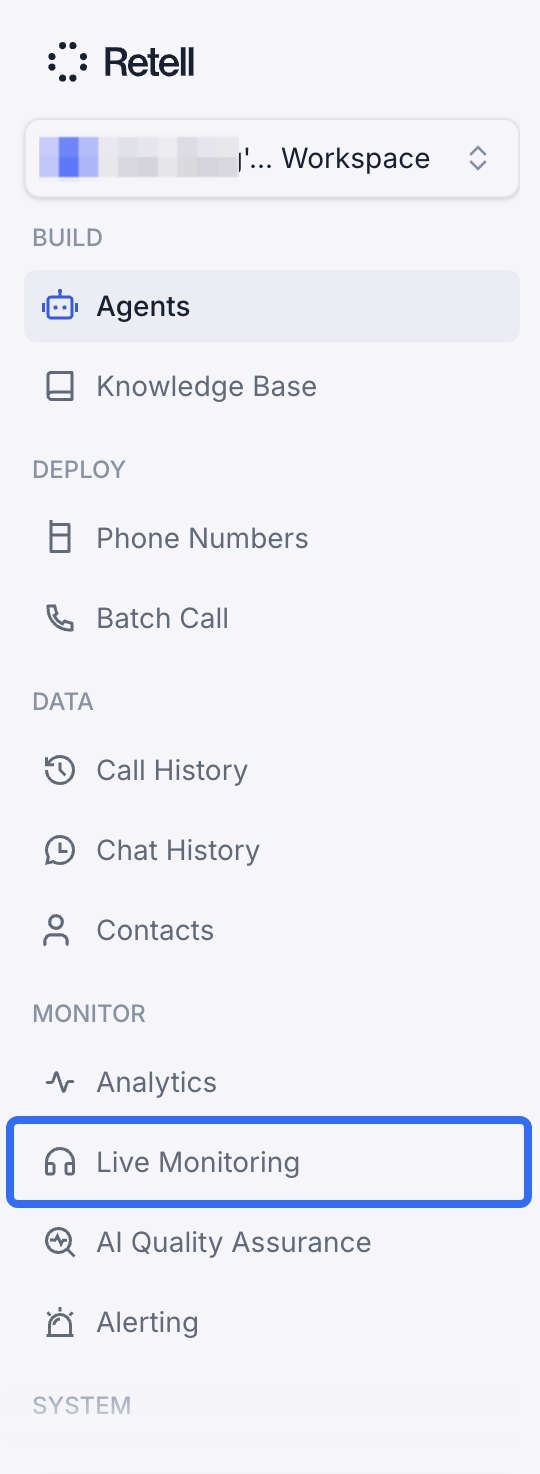
1. Go to the dashboard
2. Select **Live Monitoring** in the navigation
Live Monitoring is available to the **Admin** and **Developer** roles, and to any custom role granted call management (write) permission. The **Member** role can't access it. If you don't see Live Monitoring in the navigation, ask your workspace admin to update your role — see [Access Control](/accounts/access-control).
If an agent has [PII scrubbing](/accounts/privacy-disable) enabled, monitoring its live calls requires permission to view raw data, which the **Admin** and **Developer** roles have. Scrubbing runs only after a call ends, so no redacted transcript exists mid-call — users without raw-data access can't monitor, listen to, or take over those calls.
## Live call list
The main view lists every call in progress across your workspace, newest first. It covers phone calls (inbound and outbound) and web calls.
Each row shows the start **Time**, a live-ticking **Call Duration**, the **Type** (Phone Inbound, Phone Outbound, or Web), the **From** and **To** numbers (a dash for web calls), and the **Call ID** (with a copy button on hover).
* **Updates on its own.** The list refreshes about every 4 seconds: new calls appear as they start, briefly highlighted, and drop off as they end.
* **Keyboard navigation.** With a call selected, use the up and down arrow keys to move through the list.
When nothing is active, the view shows **No Ongoing Calls**. Select any call to open it.
## Follow a live transcript
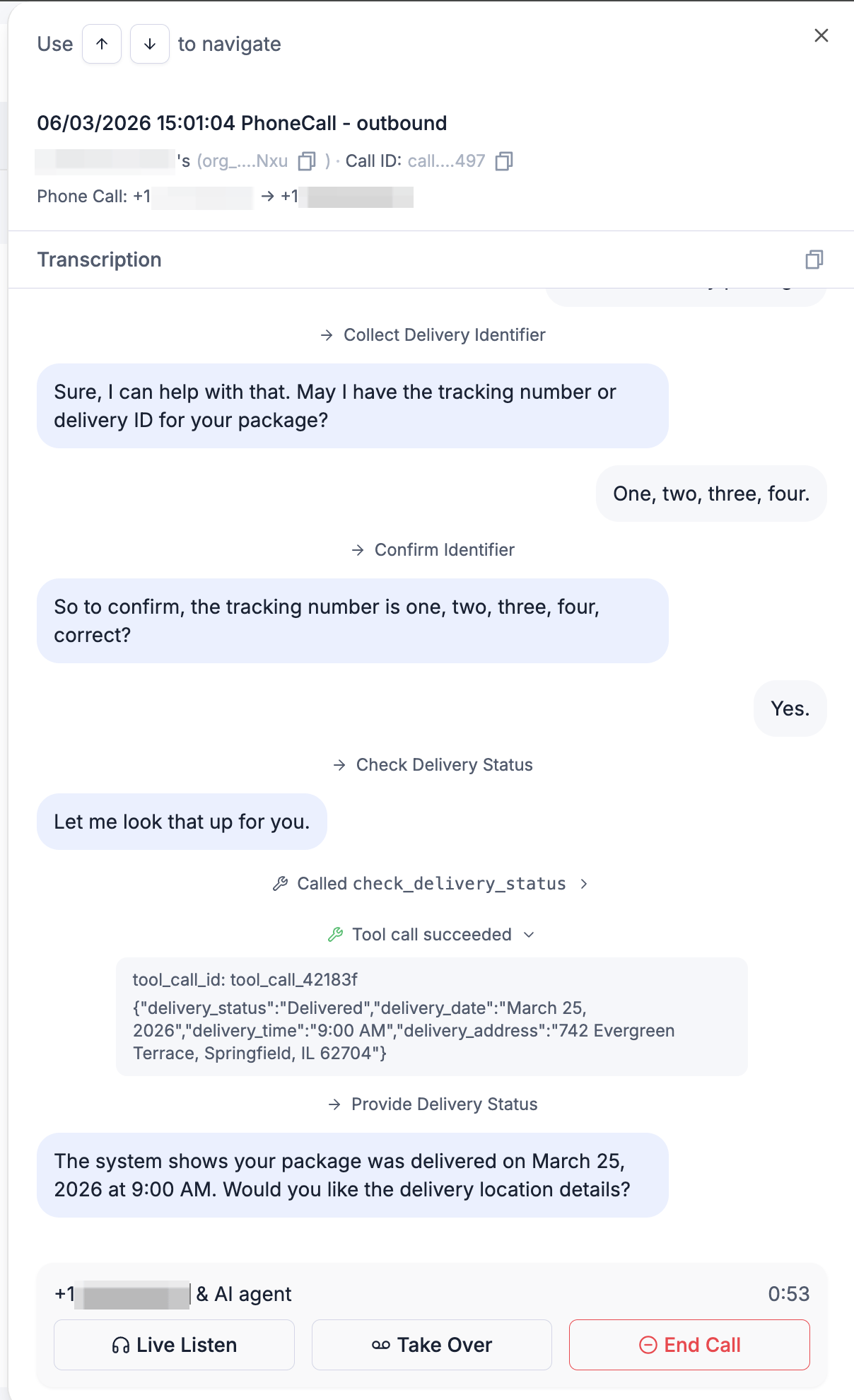
Opening a call shows its details and a **live transcript** that streams in over the call as it happens.
Above the transcript you'll see the start time, call type, the agent handling the call, the Call ID, and the from/to numbers for phone calls. The transcript itself renders:
* **Agent and caller turns** as chat bubbles.
* **Tool calls** — each function the agent invokes, with its arguments and result in an expandable entry marked *Tool call succeeded* or *Tool call failed*.
* **Node transitions** — each step a flow-based agent moves into.
* **Keypad input** — DTMF digits the caller presses.
* **SMS messages** the caller sends during the call.
The view follows the newest message automatically. Scroll up to read earlier turns, and a **Jump to latest** control appears to snap back to the bottom.
To stream the same transcript into your own tools, connect to the [monitor call WebSocket](/api-references/monitor-call-websocket) with your API key.
## Listen, take over, or end a call
When you have call management permission, three actions sit below the transcript.
### Live Listen
Select **Live Listen** to hear the call audio in real time. Listening is silent and hidden: neither the caller nor the agent is notified, and your microphone is never transmitted. A **You're listening live** indicator shows while you're connected. Select **Exit Live Listen** to stop. Any number of people can listen to the same call at once.
### Take Over
Select **Take Over** to leave the agent behind and speak with the caller yourself. You confirm in a dialog (*"This permanently stops the AI agent and connects you directly to the caller. It can't be undone."*), then your browser prompts for microphone access.
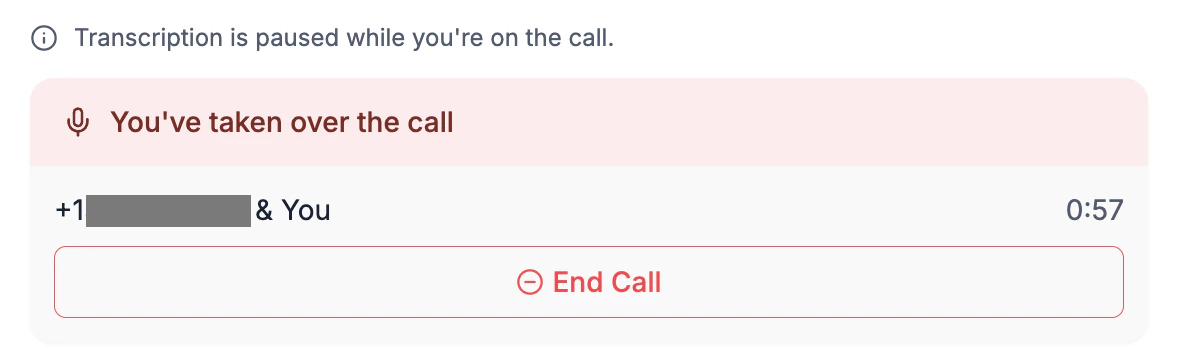
Taking over **permanently stops the agent** for that call. The agent does not resume, the live transcript pauses (*"Transcription is paused while you're on the call"*), and the call ends when either side hangs up or you end it. This can't be undone.
* Retell asks for your microphone **before** it stops the agent, so if you deny the prompt the take-over is canceled and the agent keeps handling the call.
* Only **one person** can take over a given call. If someone else already has, you'll see *"Call already taken over by another participant."*
* Works for both phone and web calls.
* While you're on the call, leaving the view or closing the tab warns you first, since leaving ends the call for the caller.
### End Call
Select **End Call** to disconnect the caller and end the call for everyone. You confirm first (*"This disconnects the caller and ends the call for everyone."*). It's available whether or not you've taken over.
## Monitor calls from your own app
Every action above has an API behind it, so you can follow, listen to, and take over calls from your own tools instead of the dashboard.
| Action | How |
| - | - |
| Follow the transcript | [Monitor call WebSocket](/api-references/monitor-call-websocket), or `onTranscript` in the Web SDK |
| Listen to live audio | `listen()` in the Web SDK |
| Take over from the agent | `takeOver()` in the Web SDK |
| Steer the agent without taking over | [Update Live Call](/api-references/update-live-call), or `updateLiveCall()` in the Web SDK |
| End the call | [Stop Call](/api-references/stop-call), or `end()` in the Web SDK |
Listening and taking over happen in a browser, because both join the call's audio over WebRTC. The [Retell Web SDK](https://github.com/RetellAI/retell-client-js-sdk) sets up that connection, and one session covers all three actions. It's the same SDK that places [web calls](/deploy/web-call).
You monitor a call by its ID, which you get from the [`call_started` webhook](/features/webhook-overview) or [List Calls](/api-references/list-calls). A call that has already ended is rejected; one that hasn't connected yet is retried until it does, so you can open the session as soon as you have the ID.
```javascript theme={"dark"}
import { RetellClient } from "retell-client-js-sdk";
// Read the security warning below before you choose a credential.
const client = new RetellClient({ key: "public_key_YOUR_PUBLIC_KEY" });
const watch = client.monitorCall({
call_id: "call_119c3f8e47135a29e65947eeb34cf12d",
hooks: {
// connecting → monitoring → listening → taken_over → ended
onStatus: (status) => console.log("Monitor status:", status),
onTranscript: (transcript) => console.log(transcript),
onError: (error) => console.error(error),
},
});
// Drive each action from a click: browsers block audio playback and
// microphone access outside a user gesture.
document.getElementById("listen").onclick = () => watch.listen();
document.getElementById("take-over").onclick = () => watch.takeOver();
document.getElementById("end").onclick = () => watch.end();
```
The transcript streams as soon as the session exists, without waiting for `listen()`. It's on by default here, unlike [`createWebCall()`](/deploy/web-call#enable-live-transcripts); pass `transcript: false` for an audio-only session. Each session holds one of the 5 transcript connections a call allows (as of September 2026), counted together with dashboard viewers.
`listen()` is silent and reversible: no one is notified, your microphone stays off, and `stopListening()` drops the audio and goes back to transcript only. `takeOver()` is neither. It prompts for the microphone before it stops the agent, so a denied prompt rejects the promise and leaves the agent running; once it succeeds the agent is gone for that call, and `mute()` and `unmute()` control your own microphone. Only one person can take over a given call, and a second attempt rejects.
**Monitoring is a privileged capability.** An API key needs **Call → Edit**, and that permission lets whoever holds the key take over any ongoing call in your workspace whose ID they know. A public key from an allowed domain carries the same power.
An API key belongs on your server, and the SDK's `fetch` option alone won't keep it there: `fetch` covers only REST, so the transcript WebSocket still connects with whatever credential the browser holds. Three arrangements do work: a [public key](/accounts/public-keys) restricted to your domains, a `baseURL` pointing at your own proxy (it covers REST, the monitor WebSocket, and call signaling), or `transcript: false` with a proxied `fetch` and the transcript coming from your backend.
If you proxy, allow only the endpoints the page uses and check that the signed-in user may act on that call. A route that forwards everything lets anyone who reaches it use your key for every other Retell API. Either way, build monitoring as an internal tool behind your own authentication rather than on a public page.
## FAQ
Live Monitoring is available to the **Admin** and **Developer** roles, and to any custom role granted call management (write) permission — the **Member** role can't access it. Contact your workspace admin if you need access. See [Access Control](/accounts/access-control) for details.
No. Live Listen is silent and hidden: neither the caller nor the agent is notified, and your microphone is never transmitted until you explicitly take over.
Up to **5 connections** can follow the same call's live transcript at the same time, counting both dashboard viewers and [monitor call WebSocket](/api-references/monitor-call-websocket) connections; a sixth is turned away with a *"max watchers reached"* message until a slot frees up. Any number of people can **Live Listen** to the audio. Only **one** person can **Take Over** a call.
If the agent has [PII scrubbing](/accounts/privacy-disable) enabled, monitoring, listening, and taking over require permission to view raw data — held by the **Admin** and **Developer** roles. Scrubbing runs only after the call ends, so there's no redacted transcript to show mid-call, and users without raw-data access are blocked from those live calls.
The agent is permanently stopped for that call. You're connected directly to the caller, and the agent does not resume. The call ends normally when either side hangs up or you end it.
The take-over is canceled and the agent keeps handling the call. Grant microphone access and try again to take over.
Yes. The [monitor call WebSocket](/api-references/monitor-call-websocket) streams the same transcript, tool calls, and node transitions to your server while the call is ongoing. Live Listen and Take Over are available through the [Retell Web SDK](https://github.com/RetellAI/retell-client-js-sdk) — see [Monitor calls from your own app](#monitor-calls-from-your-own-app).
Whispering isn't supported: there's no way to speak to the agent so only it hears you. You can steer it in text instead. [Update Live Call](/api-references/update-live-call) injects context into the conversation with `call_control.additional_context`, and `trigger_response` makes the agent act on it without waiting for the caller's next turn. Neither party speaks the injected text, and it shows up in the transcript as an injected item. `trigger_response` is a no-op while the caller is speaking, so the agent never talks over them, and also while the agent is speaking if its `interruption_sensitivity` is `0`. In the dashboard, the live actions remain **Live Listen**, **Take Over**, and **End Call**.
This documentation is built and hosted on [Mintlify](https://mintlify.com), a developer documentation platform.