Overview
Post Call Extraction is a feature that allows you to analyze calls after they have ended. We provide several built-in analysis categories, and you can also customize your own.Step 1: Create an Analysis Category
In the agent editor, expand Post call extraction and select Add to create a category. For a conversation flow, select Global settings first. Chat agents use Post chat extraction.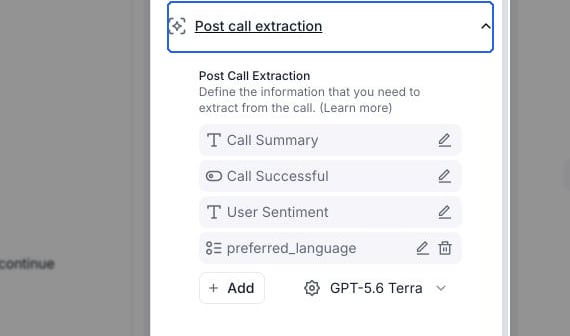
Open Post call extraction to manage fields and add a custom field.
- Text
- Selector
- Boolean
- Number
Examples
-
If you find the default agent call summary doesn’t satisfy your needs, you can create a new analysis category with type
Textand name it “detailed_call_summary”.- Description: “Provide a detailed summary of the call so that when the call is transferred, the new human agent has the full context.”
- Format Example: Provide an example of how the output of this analysis category should look.
-
To analyze whether the customer is a new or existing customer, create a new analysis category with type
Booleanand name it “is_new_customer”.- Description: “Indicates whether the customer is new or existing.”
- Format Example: Provide an example of how the output of this analysis category should look.
-
To determine if the customer was transferred to a human agent, create a new analysis category with type
Booleanand name it “is_transferred”.- Description: “Indicates whether the call was transferred to a human agent.”
- Format Example: Provide an example of how the output of this analysis category should look.
-
To analyze the transaction amount for the customer, create a new analysis category with type
Numberand name it “transaction_amount”.- Description: “The transaction amount for the customer.”
- Format Example: Provide an example of how the output of this analysis category should look.
Step 2: Consume the Analysis Result
Method 1: Dashboard History Tab
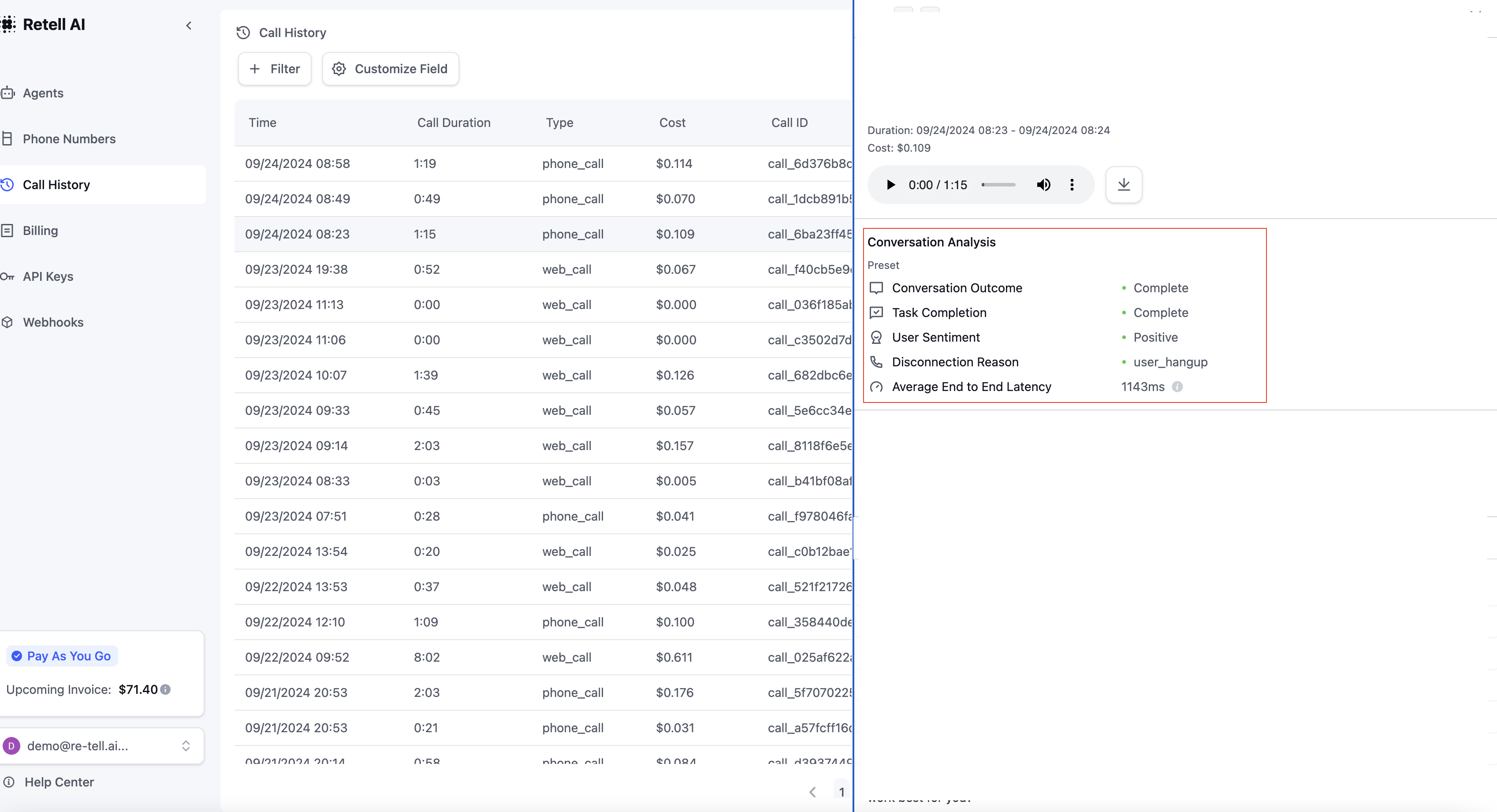
You can view the analysis results in the dashboard history tab.