Use the Billing page to buy credits, configure spending controls, and review invoices and receipts. To analyze call, chat, and subscription charges, see Usage and costs. Workspaces still on monthly billing can switch by clicking Switch now and adding credits. If you don’t, Retell moves the workspace on September 30, 2026, and the credit balance starts at $0. Enterprise workspaces stay on monthly invoicing. How to switch is in the legacy billing notice.

Which billing version am I on?

Check the Billing page to see which version applies to your workspace:
  • Credit-based billing — your Billing page shows a Credits Balance with Buy credits and Auto recharge buttons. You pay for usage upfront with prepaid credits. This applies to newer accounts.
  • Monthly billing (legacy) — your Billing page shows only monthly invoices, with no credit balance. Usage is billed at the end of each period. This applies to workspaces created before credit-based billing. On September 30, 2026, Retell moves these workspaces to credit-based billing. If you don’t click Switch now and add credits first, the credit balance starts at $0. Enterprise workspaces stay on monthly invoicing.
Billing is scoped per workspace, not per account. Every workspace, including new ones you create later, has its own payment method, credit balance, invoices, and usage totals. Adding a card in one workspace does not carry it over to another workspace under the same login: switch into each new workspace and add a payment method there before running calls. See Create and manage Retell workspaces for how to switch workspaces.
Choose your billing version below.

How credit-based billing works

Retell AI Billing page showing a $21.60 Credits Balance, Budget settings, Auto recharge, and Buy credits actions above the Invoices, Credits purchased, and Usage tabs

A credit-based Billing page with Invoices, Credits purchased, and Usage tabs

Credit-based accounts pay for usage with a prepaid credit balance:
  • Usage costs — calls, chat, and other metered usage — are deducted from your credit balance in real time.
  • Subscription items — phone numbers, knowledge bases beyond the free tier, calls per second (CPS), and purchased concurrency — are not paid with credits. They are billed to your payment method on file at the end of each billing cycle.
The billing cycle runs from the 1st of the month to the end of the month. Subscription items purchased mid-month are prorated for the portion of the month they were active.New accounts start with $10 in free trial credits so you can test Retell before adding a payment method. The trial credit is granted once per email address. If you previously had a Retell account with the same email (including a deleted one), signing up again won’t grant the credit a second time.
When your credit balance reaches zero, calls, chat, and other usage stop until you buy credits or auto recharge tops up your balance. Calls that end this way show the credit_exhausted disconnection reason. Set up auto recharge to avoid interruptions.

Buy credits

1

Open the Billing page

Go to Billing in your dashboard and click Buy credits.
2

Enter an amount and purchase

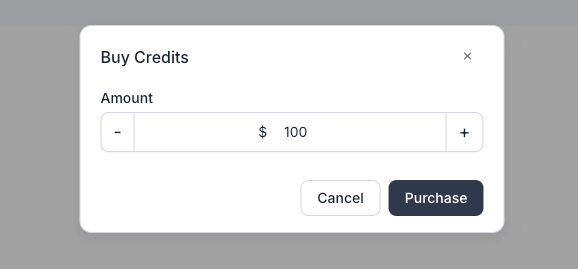
Enter the amount and click Purchase. The charge goes to your payment method on file, processed securely through Stripe (see Add payment methods).
Buy Credits dialog with a dollar amount field set to 100 and Cancel and Purchase buttons

Buy Credits dialog: enter an amount and click Purchase

Credits never expire, but they are non-refundable once purchased.

Review purchased credits

Open Credits purchased to review each credit purchase. Use the date filter to narrow the list, and select Receipt to open the receipt for a completed purchase. If the workspace hasn’t bought credits yet, this tab shows an empty state.
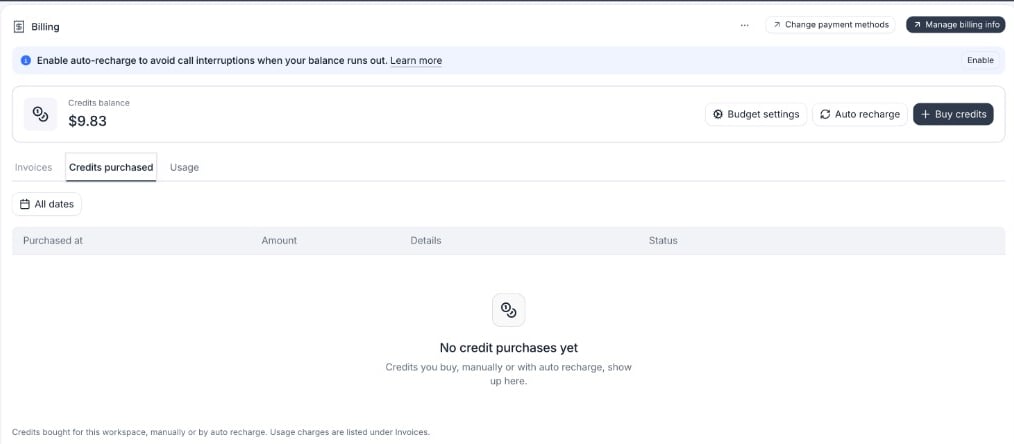
Credit-based Billing page with Credits purchased selected and a No credit purchases yet empty state below the date filter

Credits you buy manually or through auto recharge appear in the Credits purchased tab

Set up auto recharge

Auto recharge buys credits automatically when your balance runs low, reducing the risk of service interruptions:
1

Open auto recharge settings

Go to Billing, click Auto recharge, and toggle Auto Recharge on.
2

Set the threshold and target

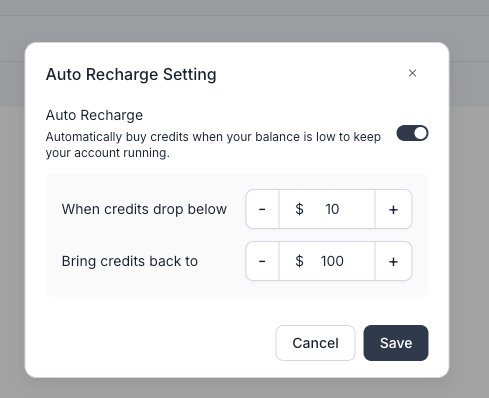
Set When credits drop below (the balance that triggers a recharge) and Bring credits back to (the balance restored on each recharge), then click Save. As of October 2026, the trigger can be $10 to $1,000 and the restored balance $20 to $5,000. The restored balance has to be higher than the trigger. Raise both if your usage can spend the balance down quickly.
Auto Recharge Setting dialog with the toggle on, When credits drop below set to $10, and Bring credits back to set to $100

Auto Recharge Setting dialog: set the trigger threshold and target balance, then save

Each recharge is charged to your default payment method. If that card is declined, Retell automatically falls back to the other valid cards on file, trying up to three cards per recharge. Adding a backup card keeps a single decline from failing the recharge.If every card is declined, Retell emails your billing contacts and retries the recharge automatically as you keep using credits. Your service keeps running until the balance reaches $0, when calls and API requests pause. To recover, add or update a card from the Billing page, or buy credits manually. For bank-level blocks or expired cards, see Handle failed payments.

Set a monthly budget

If you see Budget settings next to Auto recharge, you can cap how much the workspace spends in a month. Workspaces without that button have no monthly cap.
1

Open Budget settings

On the Billing page, click Budget settings and turn Budget on. Leave it off for no cap and no spending emails.
2

Set the monthly amount

Under Set Monthly Budget, choose an amount from $10 to $100,000, in steps of $10 (as of September 2026), then click Save.
3

Choose the alerts

Retell always emails you at 80% and 100% of the budget. Add up to 5 more alerts. Each one is a whole percent from 1 to 100, and it can’t be 80 or 100. Under Alert recipients, add the email addresses that should get every alert. Leave that empty to email people on the workspace who can manage billing.
At 100%, calls and API requests pause. Credits still on the balance do not keep usage running. Calls that end this way show the budget_reached disconnection reason. Raise the budget or turn it off to resume, or wait until the next calendar month starts (UTC). Auto recharge only buys credits when the balance is low. It does not raise this cap.

Review invoices

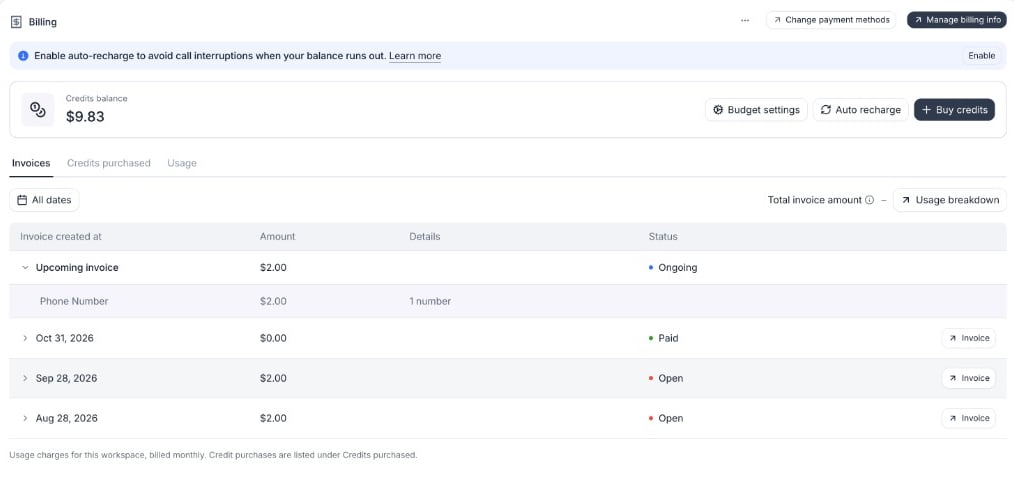
Open Invoices to review your upcoming invoice and past invoices. Expand an invoice to see its line items. At the end of each calendar month, you receive an invoice for subscription items such as:These are charged to your payment method on file and prorated if purchased mid-cycle. Select Invoice next to a billing period to open its invoice.
Credit-based Billing page with Invoices selected, an expanded upcoming invoice showing a phone number charge, and past periods with Paid or Open statuses and Invoice buttons

Invoices with the upcoming cost breakdown and past billing periods

Stop charges or close your account

To stop accruing charges on a credit-based account:
  1. Turn off auto recharge so your balance is not topped up automatically.
  2. Release any phone numbers you own. Numbers are billed monthly until released. Remove the number from the Phone Numbers page, or call the Delete Phone Number API.
  3. Delete knowledge bases beyond the free tier and remove any CPS or concurrency upgrades. These are billed monthly until removed.
  4. Settle any outstanding invoices on the Billing page.
Remaining credits are non-refundable, so spend down your balance before closing your account. To close your account entirely, follow Delete your account after completing the steps above.

View usage breakdown

Open Usage to filter or export costs and compare charges by date, agent, category, item, and subscription. See Analyze usage and costs for the complete guide.

Call duration and telephony charges

Transfers, takeovers, and fallback calls can keep telephony active after the agent leaves. See How usage is billed for timing rules, formulas, examples, and billing adjustments.

FAQ

Open Invoices and select Invoice next to a billing period. For a credit purchase, open Credits purchased and select Receipt next to the transaction.
No. Purchased credits never expire, and they are non-refundable. Spend the balance down before you close the workspace.
Calls, chat, and other usage stop when the credit balance reaches zero. Turn on auto recharge so Retell buys credits before that happens. Phone numbers and other monthly fees are separate from the credit balance. They keep billing to your card until you remove them. If a recharge payment fails, usage can still stop. See Handle failed payments.
You get an email at 80% and at 100%, plus any extra percentages you added. At 100%, calls and API requests pause. Raise the budget or turn it off to resume, or wait until the next calendar month starts (UTC). A credit balance does not keep usage running while this pause is on.
Yes. Billing is per workspace. A card or credit balance in one workspace does not apply to another workspace under the same login. Switch into each workspace and add a payment method there before you run calls. See Create and manage Retell workspaces.
No. The $10 trial credit is for a new signup, once per email address. Switching a workspace that is already on monthly billing does not grant it again. You choose a starting amount from $10 to $10,000, charged to the card on file.
Switch now shows on workspaces still on monthly billing. If it’s grayed out, ask an admin on your team. See Access control. Enterprise workspaces stay on monthly invoicing and don’t see this button.