

Transcription modes apply to cascading voice agents, which use a separate speech recognition provider. They do not apply to chat agents or speech-to-speech models.
Which mode should I use?
- Optimize for speed: Use for responsive conversation. This is the default when no mode is configured.
- Optimize for accuracy: Try this when collecting details such as account numbers or dates, or when transcripts cut off before the caller finishes.
- Custom Settings: Choose a speech recognition provider and tune its endpointing for your use case.
Set the agent default
Open Realtime transcription settings in the agent editor and find Transcription Mode. For a conversation flow, select Global settings first. Choose a preset or configure Custom Settings.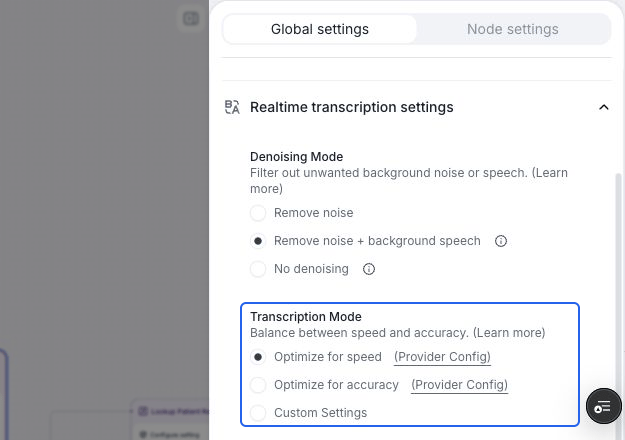
Choose the agent default under Realtime transcription settings. Optimize for speed is selected here.
Override transcription for a node
Conversation nodes and subagent nodes support their own transcription mode.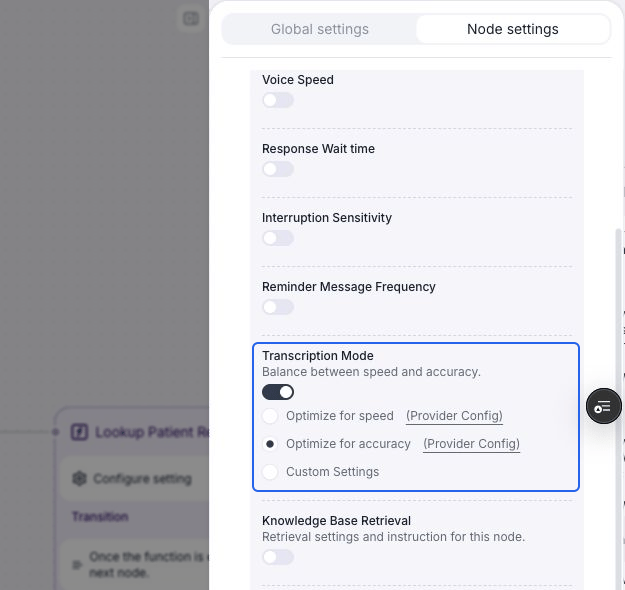
Enable Transcription Mode in Node settings, then choose a mode. Optimize for accuracy is selected here.
1
Open the node settings
Select the node on the canvas, then select Node settings in the right panel. Expand the Node settings section if it is collapsed.
2
Enable the transcription override
Under Node-level overrides, turn on Transcription Mode. It starts with the agent’s current global mode. For a custom global mode, it also starts with the global provider and endpointing, where supported.
3
Choose the node's mode
Select Optimize for speed, Optimize for accuracy, or Custom Settings. The setting applies while this node is active. On transition, Retell restores the agent default and applies the next node’s override, if any.
4
Test the relevant part of the flow
Use a web test to check the transcript and response timing for that step. Turn off the node’s Transcription Mode override to inherit the global setting again.
Custom settings
Select Custom Settings, then choose a Provider that supports all of the agent’s selected languages. For providers with an Endpointing control, adjust how long the transcriber waits to finalize speech. A longer window can help callers who pause while reading numbers, but can also delay the agent’s response.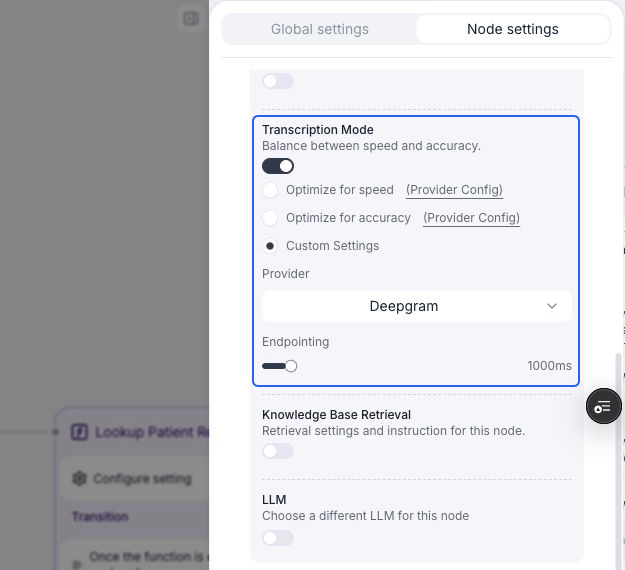
Custom Settings exposes the provider and endpointing controls. This node uses Deepgram with 1,000 ms endpointing.
When changing providers, the dashboard preserves the existing endpointing value where it fits the new provider’s range. These are dashboard slider bounds; API validation limits can differ.
The selected provider is tried first. Retell can still use fallback providers if it becomes unavailable. See provider selection and fallback.
FAQ
Does a node override change the whole agent?
Does a node override change the whole agent?
No. It applies while that node is active. Other nodes inherit the global mode unless they have their own override. Turning off an override removes its node-specific mode and custom configuration.